
AI Thumbnail Maker: A Practical Guide for YouTubers and Creators
Learn how to use an AI thumbnail maker to generate clickable backgrounds, keep one face and one focal point, and leave safe space for titles. Includes prompt recipes.
Key takeaways
- Why most thumbnails fail before any text is added
- The one-face, one-object, one-emotion rule for instant readability
- How to prompt for text-safe negative space in 16:9 and vertical crops
- Prompt recipes for tech, gaming, education, and vlog channels
Why thumbnails fail before the title is added
Most thumbnail problems start before a single word is placed. The background is busy, the subject is small, or the lighting flattens the face. When you later add a title, the text competes with the image instead of sitting on top of it. Viewers scrolling on mobile see a blur of colour and shapes, and your thumbnail becomes noise. The fix is to design the image first as a clean stage: one clear subject, one clear mood, and deliberate empty space where text will go.
AI thumbnail makers are useful because they let you generate that stage quickly and iterate. But they also make it easy to produce attractive images that fail as thumbnails. A cinematic portrait with detailed background looks great in a gallery and terrible at 320 pixels wide. Before you generate anything, decide what the viewer must understand in under one second: who is in the video, what it is about, and what emotion or promise it carries. If the image cannot answer those three questions without text, the text will not save it.
- Busy backgrounds reduce contrast and hide the subject
- Small faces and multiple focal points split attention
- No planned negative space forces awkward text placement later
- Low emotional clarity makes the thumbnail forgettable
The one-face, one-object, one-emotion rule
The most reliable thumbnail structure is one face, one object, and one emotion. One face gives viewers a human anchor and a reason to look. One object tells them what the video is about, such as a laptop, a game controller, or a notebook. One emotion sets the tone, whether curiosity, surprise, focus, or excitement. When you add more faces or more objects, each element competes for attention and the thumbnail becomes harder to read at small sizes.
This rule also simplifies prompting. Instead of describing a complex scene, you describe a single subject with a clear expression and a single prop, placed against a controlled background. The AI has fewer variables to misinterpret, and you get more consistent results across a series. For channels with recurring hosts, keep the face direction and lighting style similar so the thumbnails feel like a set. The object can change per video, but the emotional register and composition should stay recognisable.
- Use one primary face, ideally looking toward the text area
- Include one prop that signals the topic
- Choose one emotion and describe it physically, such as raised eyebrows or a slight smile
- Avoid group shots unless the group itself is the story
How to generate a background with text-safe negative space
Text-safe negative space is not just empty area. It is an area with low detail, consistent tone, and enough contrast for the text colour you plan to use. When prompting, describe where the empty space should be and what should fill it. For example, ask for a clean gradient wall on the left third of the frame, or a soft shadow area on the right. Avoid prompts that fill the whole frame with texture, patterns, or bright highlights, because those details will fight your title.
A practical approach is to generate at a wider aspect ratio than you need and then crop. This gives you room to reposition the subject and the empty space. Ask the model for a subject positioned off-centre, with the background falling away into a smooth gradient. If the result still has clutter, use image-to-image editing to remove or soften details in the text zone. The goal is a background that looks intentional, not empty, and that supports a short, bold title without requiring a heavy overlay.
- Specify the side or third of the frame that should stay clean
- Request smooth gradients or soft shadows instead of patterns
- Generate wider and crop to your final ratio
- Check contrast by viewing the image at mobile size before adding text
Prompt recipes for tech, gaming, education, and vlog channels
Different niches need different visual signals. Tech videos benefit from clean surfaces, cool lighting, and a single device as the object. Gaming thumbnails often use dramatic rim light, saturated colours, and a sense of motion or tension. Education channels need calm, uncluttered backgrounds with soft light and a clear focal object such as a notebook or whiteboard. Vlog channels can be warmer and more personal, with lifestyle details that stay out of the text zone.
The prompt structure stays similar across niches: subject, expression, object, background, lighting, and negative space. What changes is the vocabulary. For tech, use words like matte, minimal, and cool white. For gaming, use rim light, neon, and dynamic angle. For education, use soft daylight, pastel, and organised. For vlog, use warm, cosy, and natural. Keep prompts specific but not overloaded. Three or four strong visual cues usually work better than ten weak ones.
- Tech: minimal desk, one device, cool lighting, clean right side
- Gaming: dramatic rim light, one controller or headset, dark background with neon accents
- Education: soft daylight, notebook or laptop, calm pastel background
- Vlog: warm natural light, one lifestyle prop, uncluttered background
Cropping for 16:9, Shorts, and community posts
A thumbnail that works at 16:9 may fail as a Shorts cover or a community post. YouTube thumbnails are 1280 by 720 pixels, but Shorts and vertical feeds crop to 9:16, and community posts often appear square or in-feed with different overlays. If you generate one image and crop it blindly, you may cut off the face or lose the text-safe area. Plan the crop before you generate by keeping the subject near the centre and the empty space flexible.
A useful workflow is to generate a wider image with the subject slightly off-centre and generous empty space on two sides. Then create separate crops for 16:9, 9:16, and 1:1. For vertical crops, the face should sit in the upper third and the text zone below. For square crops, keep the face and object close together. Always preview each crop at the size it will appear in the feed, not at full resolution. Small adjustments in crop can make a large difference in readability.
- Generate wider than 16:9 to allow flexible cropping
- Keep the face near the centre for vertical and square crops
- Reserve the lower third for text in 9:16 covers
- Preview at feed size, not full resolution
Contrast, colour, and mobile readability
Mobile readability depends on contrast and colour separation. A face that blends into the background, or text that sits on a similar tone, disappears on a small screen. Use complementary colours to separate the subject from the background, such as warm skin tones against cool teal or magenta. Keep the background slightly darker or lighter than the subject so the silhouette reads clearly. Avoid placing text over areas with similar brightness to the text colour.
Colour also carries emotion. Magenta and cyan can feel energetic and creator-focused, while warm oranges and soft yellows feel friendly and approachable. Dark backgrounds with bright rim light can feel dramatic and premium. Whatever palette you choose, limit it to two or three dominant colours. Too many colours create visual noise. Test your thumbnail by shrinking it to 20 percent and viewing it on a phone. If you cannot tell where the face ends and the background begins, adjust the contrast before adding text.
- Use complementary colours to separate subject and background
- Keep the palette to two or three dominant colours
- Check the silhouette at small size
- Avoid text over areas with similar brightness
Adding text without fighting the image
Text should feel like part of the composition, not a sticker placed on top. Use short titles, three to five words at most, and place them in the negative space you planned. Choose a bold, simple font with strong weight. Add a subtle shadow or outline only if the background contrast is insufficient. Avoid covering the face or the main object. If the text needs a heavy box to be readable, the background was not clean enough.
A good test is to remove the text and see if the image still communicates the topic. If it does, the text is reinforcement, not a crutch. Keep the text colour consistent with your channel branding, but prioritise contrast over brand loyalty. For series, use the same text position and style so viewers recognise your thumbnails instantly. If you generate multiple options, add text to each and compare them side by side at mobile size before choosing.
- Keep titles to three to five words
- Place text in the planned negative space
- Use bold, simple fonts with strong weight
- Avoid covering the face or main object
A/B testing thumbnails without guessing
A/B testing thumbnails is about isolating variables, not just trying random images. Change one thing at a time: the expression, the background colour, the text wording, or the object. If you change everything at once, you learn nothing. Use YouTube's built-in thumbnail testing where available, or rotate thumbnails manually over similar videos and compare click-through rates over a fair period. Keep the video topic and audience constant so the comparison is meaningful.
Before testing, define what success looks like. A higher click-through rate is the usual metric, but watch time and audience retention also matter. A thumbnail that attracts clicks but leads to early drop-off may be misleading. Generate two or three strong options using the one-face, one-object, one-emotion rule, then test them. Record what you learn in a simple document so your thumbnail style improves over time. The goal is a repeatable process, not a single lucky image.
- Change one variable per test
- Use similar videos and audiences for fair comparison
- Track click-through rate alongside retention
- Document results to build a repeatable style
Keep exploring
Prompt recipes
Prompt recipes are kept in English because image and video models follow English instructions most reliably. The rest of the guide is in your language.
Magenta and cyan creator studio
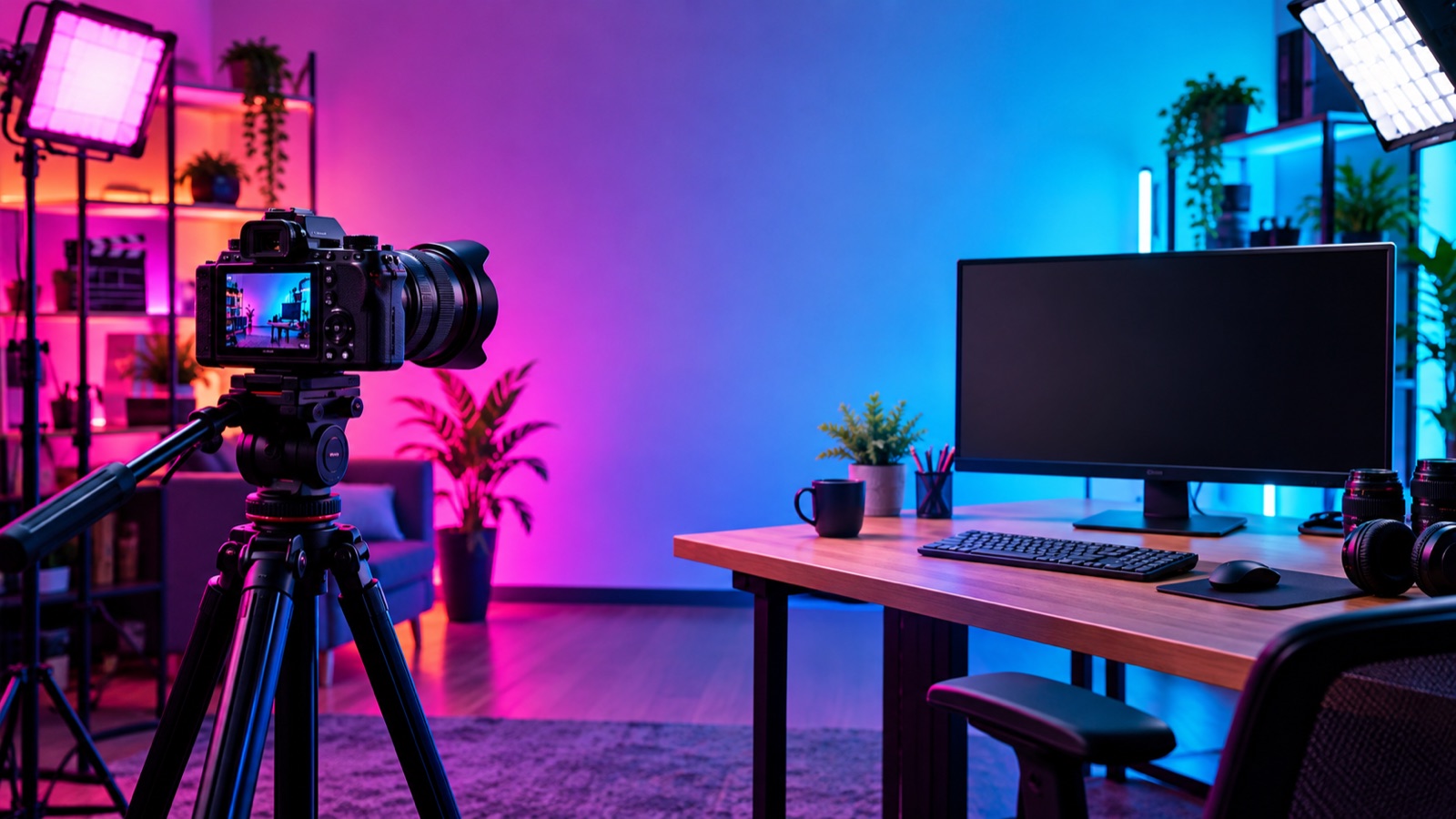
Create a vibrant creator studio background for a YouTube thumbnail. Place one person from the reference image on the right third, facing slightly left toward the empty space, with a calm, confident expression. Use magenta and cyan gel lighting, a soft gradient wall on the left two thirds with no patterns or text, and a shallow depth of field. Keep the face sharp and well lit, preserve the person's identity and features, and leave clean negative space on the left for a short title. Output at 16:9, high resolution, no text, no logos.
Gaming desk with dramatic rim light
Generate a gaming thumbnail background with one person from the reference image seated at a desk on the left, holding a controller, with an intense, focused expression. Use dramatic rim light in blue and purple, a dark background with subtle neon accents, and a single monitor glowing softly. Keep the right side of the frame clean and dark for text. Preserve the person's face and identity, avoid clutter, and do not add any text or logos. Output at 16:9, high resolution, cinematic but readable at small sizes.
Clean educational explainer background
Create a clean educational explainer thumbnail background. Place one person from the reference image on the right, looking toward the left with a friendly, approachable expression. Use soft daylight, a pastel background with a smooth gradient, and a single notebook or laptop on a desk as the focal object. Keep the left half of the frame free of detail for a short title. Preserve the person's identity and features, avoid busy patterns, and do not include any text or logos. Output at 16:9, high resolution, calm and organised.
Frequently asked questions
What is an AI thumbnail maker?
An AI thumbnail maker is a tool that generates or edits images for video thumbnails using text prompts or reference images. It can create backgrounds, adjust lighting, and help you compose a subject with space for a title. Flash Omni offers text-to-image and image-to-image workflows that you can use to build thumbnail stages quickly.
Can I use my own face in an AI-generated thumbnail?
Yes, you can use image-to-image workflows to place a reference photo of yourself into a generated scene. However, results vary by model and prompt, and exact likeness is not guaranteed. You should review each output carefully and keep a backup of your original photo. Flash Omni does not promise exact identity preservation.
How much does it cost to generate thumbnails with Flash Omni?
Image generation costs credits, and the price is shown before you confirm each job. A public one-time credit pack starts at USD 19.99 for 500 credits, and monthly plans start at USD 14.99 for 500 credits. Costs vary by model and resolution, so check the confirmation screen before generating.
What aspect ratio should I use for YouTube thumbnails?
YouTube thumbnails are 16:9, commonly 1280 by 720 pixels. For Shorts and vertical feeds, use 9:16. Community posts often appear square. Generate a wider image and crop to each ratio so you can keep the face and text-safe space intact across formats.
Can I add text directly in the AI image?
Some models can render text, but results are often unreliable for short, bold titles. A safer workflow is to generate a clean background with negative space and add text in a separate editor. This gives you control over font, size, and placement, and makes it easier to update or A/B test the title.
How do I A/B test thumbnails without guessing?
Change one variable at a time, such as the expression or background colour, and test on similar videos with similar audiences. Use YouTube's thumbnail testing feature where available, and compare click-through rate alongside retention. Record what you learn so you can repeat successful choices rather than relying on luck.
Turn this guide into a finished visual
Open the image editor or video workspace, paste your prompt, and see the result before you spend credits. Prices and model availability are shown before you confirm a run.
- Secure checkout
- Credits shown before you confirm
- Support from the product team
This guide is maintained by the Flash Omni editorial team. Product limits, model availability, and prices can change, so verify the current workspace before you buy credits.
Related guides

AI Product Photo Generator: A Practical Ecommerce Guide
A practical guide to using an AI product photo generator for ecommerce: what to preserve, scene recipes, lighting language, catalog consistency and a publish checklist.
Read guide
AI Headshot Generator: A Practical Guide to Professional Portraits
Learn how to use an AI headshot generator for LinkedIn, resumes and team pages. Upload tips, crop ratios, lighting setups, retouch checks and prompt recipes.
Read guide
Text to Video AI Generator: A Practical Guide for Creators
Learn how to turn written scenes into short video clips with a text to video AI generator. Prompt recipes, formats, cost planning, and honest limits for creators.
Read guide