
Text to Video AI Generator: A Practical Guide for Creators
Learn how to turn written scenes into short video clips with a text to video AI generator. Prompt recipes, formats, cost planning, and honest limits for creators.
Key takeaways
- Write shot prompts, not story prompts, to get usable clips
- Control camera, subject, action, light, and duration in one line
- Five short-video formats that suit product marketing
- Plan credits and iterations before you generate
What text to video is good at, and where it still struggles
Text to video AI generators are strongest when you need a short, self-contained moment: a product rotating on a table, a person walking through a doorway, a landscape drifting past a window. They handle atmosphere, lighting, and simple motion well. For marketers and course creators, this means you can test a visual idea in minutes rather than booking a shoot. The output is often good enough for social cuts, concept boards, and internal reviews.
Where they struggle is with precise choreography, complex hand interactions, and text inside the frame. If your scene needs a character to pick up a specific object and speak a line, expect several attempts. Long continuous shots with multiple actions tend to drift. Faces and logos can warp. Treat the generator as a fast sketch tool, not a final camera. Plan for iteration and keep shots short.
- Good: mood, light, weather, simple subject motion, camera moves
- Good: quick concept tests and ad variants before a full production
- Weak: precise hand and object interaction, readable on-screen text
- Weak: long multi-action shots and exact likeness
- Weak: consistent characters across many separate clips
How to write a shot prompt instead of a story prompt
A story prompt describes a narrative: a woman discovers a hidden café and feels nostalgic. A shot prompt describes what the camera sees in one clip: a medium shot of a woman in a linen jacket walking toward a café window, warm afternoon light, slow handheld follow. The second version gives the model concrete visual instructions. It removes ambiguity about framing, subject, and motion, which is what the generator needs to produce a usable clip.
Start every prompt with the shot type and subject, then add action, light, and duration. Avoid backstory and emotional adjectives that cannot be seen. Instead of saying the scene is hopeful, say the light is soft and the subject smiles slightly. If you need a sequence, write separate shot prompts for each clip and keep the visual language identical. This makes editing and style matching much easier later.
- Lead with shot type: close-up, medium, wide, over-the-shoulder
- Name one subject and one main action per clip
- Describe light direction and quality, not mood words
- State duration and camera movement explicitly
- Keep a reusable style suffix for consistency
Camera, subject, action, light, and duration
These five elements form the backbone of a reliable shot prompt. Camera covers framing and movement: a slow push-in, a static wide, a handheld follow. Subject is the main thing in frame, described by clothing, material, or shape rather than name. Action is one clear motion, such as turning, pouring, or walking. Light covers direction and quality, like golden hour backlight or soft window light. Duration tells the model how long the clip should feel.
Keep each element short and concrete. A prompt like medium shot, a ceramic mug on a wooden table, steam rising, slow push-in, warm side light, four seconds is easier for the model to follow than a paragraph of atmosphere. If a clip fails, change one element at a time. Often the fix is a simpler action or a more specific camera move. Duration matters too: shorter clips are easier to control and cheaper to iterate.
- Camera: static, push-in, pull-back, pan, handheld follow
- Subject: one clear object or person, described by visible traits
- Action: one verb, one motion, no chained events
- Light: direction, quality, and time of day
- Duration: keep to a few seconds for control
Five short-video formats that work for product marketing
Not every ad needs a complex scene. Five formats consistently work well with text to video: the product hero shot, the lifestyle context shot, the before-and-after suggestion, the texture close-up, and the moving background plate. Each format uses simple motion and clear lighting, which suits current generators. They also map neatly to common ad placements, from vertical social to square feed.
The product hero shot places the item centre frame with a slow push-in or rotation. The lifestyle shot shows the product in a believable setting, such as a bottle on a picnic blanket. The before-and-after suggestion uses two clips with matched framing. The texture close-up highlights material, like fabric or liquid. The moving background plate gives you a clean scene to overlay text and logos in your editor. Rotate these formats to test different angles without a full shoot.
- Product hero: centre frame, slow push-in, clean light
- Lifestyle context: product in a real setting, gentle motion
- Before-and-after suggestion: two matched clips, same framing
- Texture close-up: material detail, shallow depth of field
- Background plate: scene only, space for text and logo overlays
How to keep style consistent across multiple clips
Consistency comes from repetition, not luck. Build a short style block that you append to every prompt: lens, colour palette, light quality, and film grain. For example, 35mm lens, warm amber and sand palette, soft golden hour light, subtle grain. Use the same block across all clips in a sequence. This anchors the look even when the subject or location changes.
You can also use image-to-image or reference-to-video workflows to lock a look. Generate a still frame first, then use it as a reference for the video clip. Keep a folder of approved frames and reuse them. Avoid changing too many variables between clips. If one clip looks different, compare its prompt to the others and align the style block before regenerating.
- Create a reusable style suffix and paste it into every prompt
- Lock lens, palette, and light quality first
- Use a reference still for image-to-video runs
- Keep a library of approved frames for reuse
- Change one variable at a time when matching clips
Common artifacts and how to reduce them
Typical artifacts include warping faces, melting hands, flickering textures, and objects that change shape mid-clip. These often appear when the action is too complex or the subject is too small in frame. Reduce them by simplifying the action, moving the camera closer, and shortening the duration. If a hand is not essential, frame it out. If a logo warps, remove it from the generated clip and add it in your editor.
Flicker and texture crawl can be reduced by asking for stable lighting and avoiding rapid camera moves. Long clips accumulate more errors, so generate short segments and cut them together. When a clip fails repeatedly, change the subject description or the camera angle rather than adding more words. Sometimes a wider shot with less detail produces a cleaner result than a tight close-up.
- Simplify action and shorten duration to reduce warping
- Frame out hands and small details that often break
- Add logos and text in the editor, not in the generator
- Avoid rapid camera moves that cause flicker
- Generate short segments and edit them together
From first draft to a usable ad variant
Treat the first generation as a draft. Review it for framing, motion, and light, then adjust one element and regenerate. Keep a simple log of prompts and results so you can compare. Once you have a clip that works, duplicate the prompt and change only the product colour, background, or camera angle to create variants. This is how you build a small set of ad options without starting from scratch each time.
A usable ad variant usually needs three things: a clear product moment, a stable background for text, and a duration that fits the placement. If the clip is close but not perfect, consider using it as a background plate and adding the product as a still overlay in your editor. This hybrid approach often gives you more control than asking the generator to do everything in one pass.
- Review the first clip and change one variable at a time
- Log prompts and results for comparison
- Create variants by changing colour, angle, or background
- Use clean clips as background plates for overlays
- Keep the final edit in your editor for text and logos
Cost planning before you generate
Video generation uses credits, and failed attempts still cost. Before you start, estimate how many clips you need and multiply by a realistic iteration factor. If a shot typically takes three attempts, plan for three times the credits. Flash Omni shows credit costs before confirmation, so you can check each run. Public pricing includes a one-time credit pack starting at USD 19.99 for 500 credits and monthly plans starting at USD 14.99 for 500 credits.
Keep early tests short and low-cost. Use still image generation to lock the look before spending on video. Once the frame and style are approved, generate short video clips and assemble them in your editor. This staged approach reduces waste. Remember that model providers and routing partners vary by model, and output quality can differ between runs, so budget for a few retries rather than assuming a single pass will work.
- Estimate clips needed and multiply by a realistic retry factor
- Check credit costs before confirming each run
- Use still images to lock style before video
- Keep test clips short to reduce spend
- Budget for retries because results vary between runs
Keep exploring
Prompt recipes
Prompt recipes are kept in English because image and video models follow English instructions most reliably. The rest of the guide is in your language.
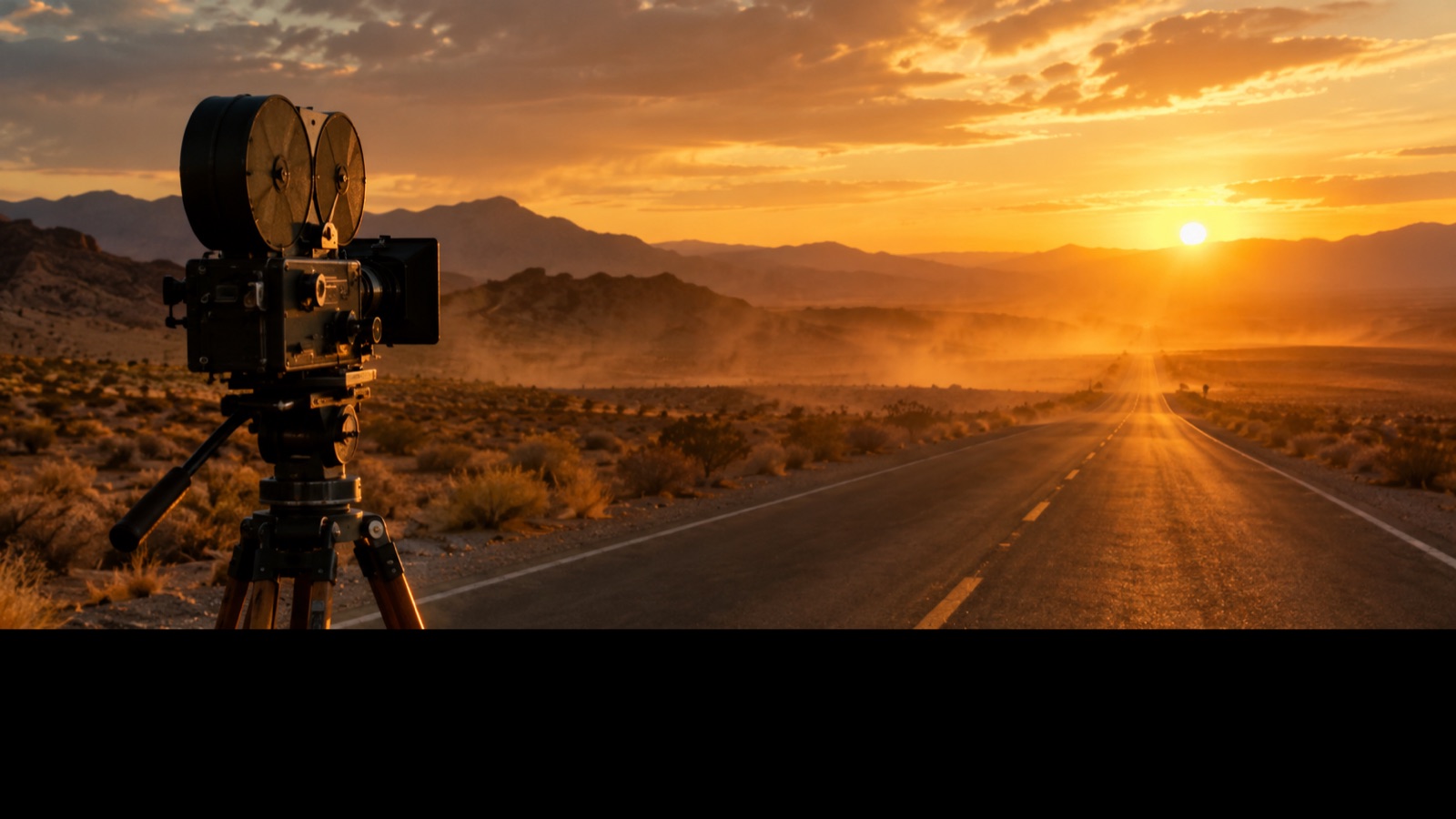
Desert road at golden hour with film camera
Edit this image to place a vintage film camera on a small tripod beside a desert road at golden hour. Keep the existing camera body shape, lens, and tripod details exactly as they are. Add warm low sunlight from the left, long shadows across the sand, and distant hills. Preserve the original colour palette and film grain. Do not change the camera model or add text. Output a wide landscape frame suitable as a video reference still.
Product hero shot with slow push-in
Using the supplied product image, create a hero shot on a matte stone surface with a soft gradient background. Keep the product shape, label placement, and material finish unchanged. Add a slow push-in camera feel by framing slightly wider with space around the product. Light from the upper right with a soft falloff and a gentle reflection. Preserve brand colours exactly. Do not add text or logos. Output a clean frame for a four-second video clip.
Cozy autumn street scene with leaves
Transform this image into a cozy autumn street scene while keeping the main subject and any product unchanged. Add fallen leaves along the pavement, warm shop window light, and a soft overcast sky. Keep the subject's clothing colours and facial features consistent with the original. Use a 35mm lens look with shallow depth of field. Do not add text or new people. Output a stable frame suitable for a short lifestyle video clip.
Frequently asked questions
How long should a text to video clip be?
Keep clips short, typically a few seconds. Shorter clips are easier for the model to control and cheaper to iterate. You can assemble several short clips in an editor to create a longer sequence. Long single generations tend to drift in motion and detail, which makes them harder to use without cuts.
Can I control the camera movement in a text to video prompt?
Yes, you can describe camera moves such as slow push-in, pull-back, pan, or handheld follow. Keep the instruction simple and pair it with one clear subject and action. Complex combined moves are less reliable. If a move fails, try a simpler version or a static shot and add motion in your editor.
Why do faces and hands look wrong in AI video?
Faces and hands contain fine detail and complex motion, which current models often struggle to reproduce consistently. You can reduce issues by framing them out, simplifying the action, or shortening the clip. For ads, it is often better to show hands and faces briefly or use a still image overlay in your editor.
How do I keep the same style across several clips?
Use a reusable style block in every prompt that specifies lens, colour palette, light quality, and grain. Keep the block identical and change only the subject or action. You can also generate a reference still and use it in an image-to-video workflow. Consistency comes from repetition and limiting variables between clips.
How many credits should I budget for a short ad?
Estimate the number of clips and multiply by a realistic retry factor, often two to three attempts per shot. Check the credit cost shown before each confirmation. Flash Omni offers a one-time pack starting at USD 19.99 for 500 credits and monthly plans starting at USD 14.99 for 500 credits. Results vary, so plan for retries.
Can I use generated clips in commercial ads?
Commercial use depends on the model provider's terms and your local rules. Flash Omni does not promise commercial rights or exact likeness. Review the relevant terms before publishing. For brand work, consider using generated clips as backgrounds or concept drafts and adding final product shots in your editor.
Turn this guide into a finished visual
Open the image editor or video workspace, paste your prompt, and see the result before you spend credits. Prices and model availability are shown before you confirm a run.
- Secure checkout
- Credits shown before you confirm
- Support from the product team
This guide is maintained by the Flash Omni editorial team. Product limits, model availability, and prices can change, so verify the current workspace before you buy credits.
Related guides
Image to Video AI Generator: A Practical Guide to Controlled Motion
Learn how to animate a still image with an image to video AI generator. Covers image prep, natural motion, camera prompts, stable faces, loops and export settings.
Read guide
AI Halloween Video Generator: Turn One Still Image Into a Cinematic Five-Second Clip
Turn one Halloween still into a five-second cinematic clip for TikTok, Reels and Shorts. Learn camera moves, stable faces, sound and a repeatable workflow.
Read guide
AI Thumbnail Maker: A Practical Guide for YouTubers and Creators
Learn how to use an AI thumbnail maker to generate clickable backgrounds, keep one face and one focal point, and leave safe space for titles. Includes prompt recipes.
Read guide