
AI Halloween Costume Generator: Preview Your Costume on Your Own Photo Before You Buy
Use an AI Halloween costume generator to preview a costume on your own selfie before buying or sewing. Learn prompts, photo tips, mistakes and short video steps.
Key takeaways
- Understand what an AI costume preview can and cannot show you
- Learn a selfie routine that keeps your face and body shape believable
- Test eight costume directions for Halloween 2026
- Use a prompt formula that protects identity and anatomy
- Turn a still costume preview into a short Halloween clip
What an AI Halloween costume generator actually does
An AI Halloween costume generator takes a photo you already have and redraws it with a costume described in words. You upload one clear selfie, type something like gothic unicorn mascot with a velvet hood and silver horn, and the model returns a new image where the outfit, lighting and setting change while your pose and general appearance stay recognisable. It is a visual planning tool, not a shop and not a fitting room.
The useful part is speed. Instead of ordering three costumes and returning two, you can compare silhouettes, colours and accessories in an afternoon. You can see whether a floor-length cape swallows your frame, whether a metallic bodysuit reads as costume or gym wear, and whether a wig colour suits your skin tone under party lighting. That saves money and reduces the pile of unworn outfits in the wardrobe.
Be realistic about limits. The output is a generated image, so fabric drape, exact fit and true colour under real bulbs will differ. Small details such as buckles, lace patterns and logo placement may drift between generations. Treat every preview as a strong mood board rather than a photograph of a garment that exists. Flash Omni at https://flashomni.org is an independent hosted AI image editor and video generator, and results vary by model and by the photo you supply.
- Changes costume, styling and scene while keeping your pose readable
- Helps compare silhouettes, colours and accessory weight before spending
- Cannot confirm real fabric, sizing or exact colour matching
- Works best with one sharp, evenly lit, front-facing selfie
How to get a believable costume preview from one selfie
Start with a single photo where your face is sharp, unobstructed and evenly lit. Avoid heavy beauty filters, sunglasses, hats and strong shadows across the eyes. A plain background helps the model separate you from the scene. If you plan a full-body costume, a second photo showing your frame from head to knees gives a much better sense of proportion than a tight headshot alone.
Write the costume in layers: silhouette first, then materials, then colour, then accessories, then scene. Something like structured floor-length coat, matte wool with satin lapels, deep plum with silver trim, crescent brooch at the collar, moonlit garden background gives the model a clear order of priorities. Vague prompts such as scary costume leave too many decisions to chance and produce generic results.
Generate several variations before judging. Change one variable at a time, such as cape length or hood shape, so you can compare fairly. Keep the face and body instructions identical across runs. If a result looks off, adjust the photo or the wording rather than adding more and more adjectives, because long cluttered prompts often blur the details you care about most.
- Use a sharp, front-facing selfie with even light and no filters
- Add a wider shot if the costume covers the body
- Describe silhouette, material, colour, accessories, then scene
- Change one variable per run to compare honestly
Eight costume directions worth testing in 2026
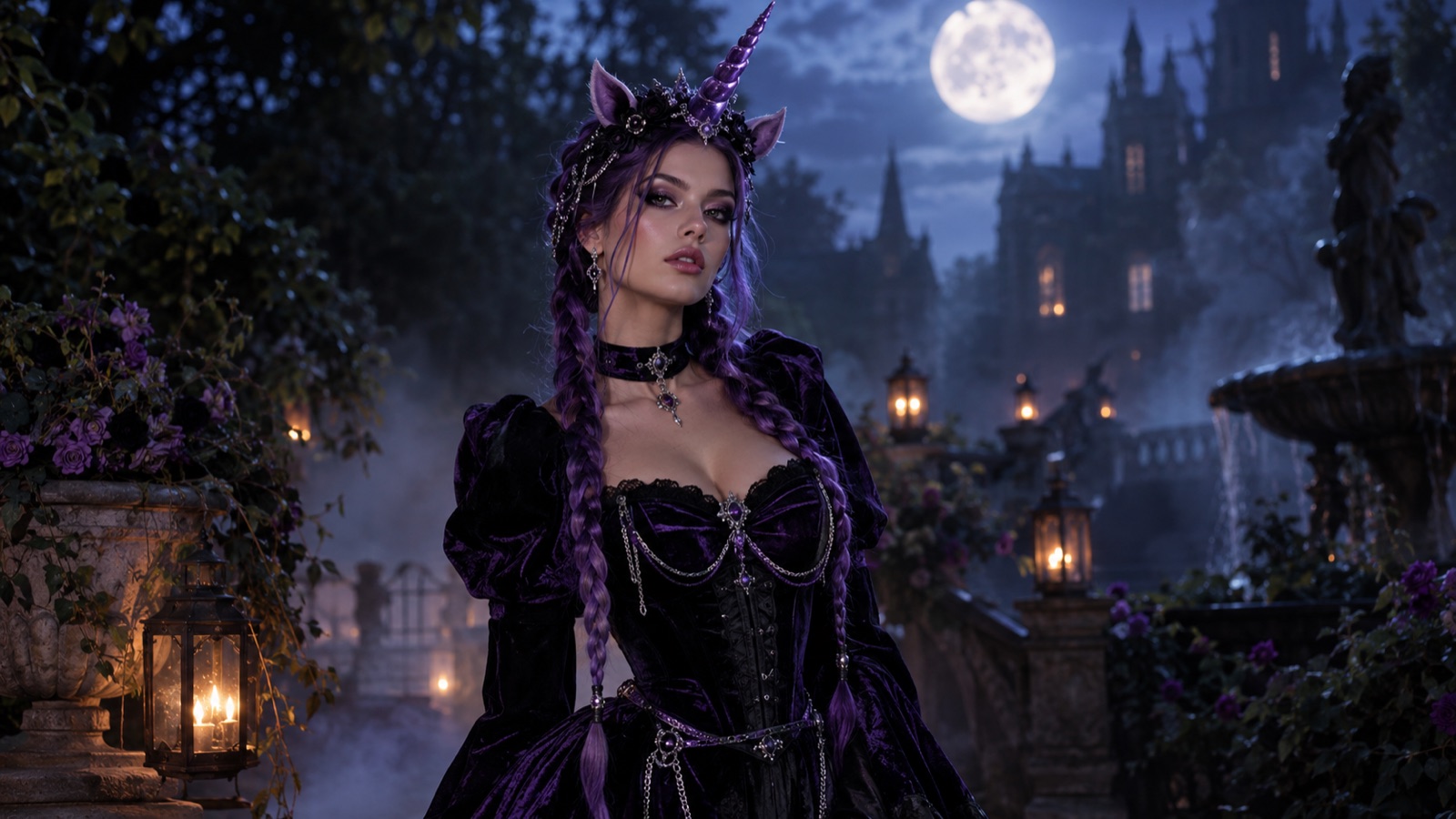
Gothic unicorn mascot suits people who want playful and eerie at once: a plush hood with a silver horn, layered black tulle, ribbon lacing and maybe a soft glow along the seams. Cosmic princess with glowing details works for couples and group themes, using deep navy fabric, constellation embroidery and subtle light strips at the hem. A cinematic robot costume that still looks wearable is a good test of restraint, because the goal is panels and joints you could actually build from foam and fabric.
For parents, gentle directions tend to photograph better: woodland witch with moss textures, friendly ghost with layered gauze, or a storybook pirate with a soft tricorn hat. Cosplay fans may prefer sharper references such as neon cyber samurai, desert wanderer with wrapped fabrics, or a masked masquerade figure with an ornate half mask. Each direction tests a different skill: texture, lighting, structure or silhouette.
Pick two directions, not eight. Generate three variations of each, then shortlist the one you would genuinely wear for four hours. Comfort matters more than the image suggests, so note where a costume might restrict movement, trap heat or make sitting difficult. The preview helps you ask those questions before you commit to sewing or buying.
- Gothic unicorn mascot with plush hood and silver horn
- Cosmic princess with constellation embroidery and glowing hem
- Wearable cinematic robot built from panels and joints
- Woodland witch, friendly ghost or storybook pirate for family themes
- Neon cyber samurai or masquerade figure for cosplay fans
The prompt formula that protects identity and anatomy
A reliable formula reads: keep the same face, facial features, skin tone, hairline and body shape as the uploaded photo, then describe the costume, then the pose, then the lighting, then the background, then technical notes. Putting the identity instruction first gives it weight. Repeating it once at the end, phrased as preserve the original face and proportions, helps on models that drift toward generic faces.
Anatomy needs explicit guidance too. Ask for natural hands with five fingers, realistic limb proportions and a pose that matches the original photo. If your selfie shows arms at your sides, say so, because a prompt that requests a dramatic raised-arm pose invites distorted shoulders and hands. Keep the camera angle consistent with the source image to reduce warping.
Finally, separate costume from scene. If the background changes wildly between runs, fix it with a short phrase such as plain dark studio backdrop, and judge the costume alone. Once you like the outfit, generate a second version with the party scene you want. This two-step approach is slower but far more controllable than asking for everything at once.
- Lead with identity: same face, features, skin tone, hairline, body shape
- State the pose explicitly and match it to the source photo
- Request natural hands and realistic proportions
- Lock the background first, then add the scene in a second pass
Photo tips: light, angle, hair, and clothing
Light decides whether a preview looks like a person or a mannequin. Face a window or a soft lamp so light falls evenly across your face, and avoid a bright window directly behind you. Harsh overhead light creates shadows under the eyes that many models reproduce faithfully, which makes the result look tired. Neutral indoor light with no colour cast is the safest starting point.
Angle matters as much as light. A straight-on camera at roughly eye level keeps proportions natural. Shooting from below lengthens the body and enlarges the chin, and shooting from above shrinks the shoulders. Keep the phone steady and avoid wide-angle lenses held close to the face, because they distort the nose and forehead in ways the model will copy.
Hair and clothing need thought. Tie hair back if you want to test a wig or hood, and leave it loose if the hairstyle is part of the costume. Wear plain, fitted clothing in a neutral colour so the model can replace it cleanly. Busy prints, bulky jumpers and heavy jewellery confuse the redraw and often survive into the generated costume as strange artefacts.
- Face a window or soft lamp, never a bright background
- Shoot at eye level with a steady phone and a normal lens
- Tie hair back for wigs and hoods, leave it loose for hairstyle-led looks
- Wear plain fitted clothing so the costume can replace it cleanly
Common mistakes that make AI costume photos look fake
The most common mistake is overloading the prompt. Ten accessories, three lighting styles and two art references in one sentence produce a muddy image where nothing reads clearly. Another is ignoring the source photo: if your selfie is blurry or half in shadow, no prompt will rescue the face. A third is accepting the first result, which is usually the most generic one the model can produce.
Watch for anatomy drift in hands, ears and shoulders, and for costume details that melt into each other, such as lace becoming noise or metal trim becoming smudge. Check that the costume sits on the body plausibly, with a waistline in the right place and sleeves ending near the wrist. If a hem floats or a collar merges with the neck, regenerate rather than trying to fix it with more words.
Style mismatch is subtler. A photorealistic face with a painted background looks like a collage. Decide early whether you want an editorial photograph, a cinematic still or an illustrated concept, and keep lighting and texture consistent with that choice. Consistency, not complexity, is what makes a costume preview convincing.
- Do not stack too many accessories or lighting styles in one prompt
- Never start from a blurry or badly lit selfie
- Check hands, waistline, sleeve length and hem placement
- Keep one visual style across the whole image
From costume preview to a five-second Halloween video
Once a still preview looks right, a short clip can show how the costume moves. Flash Omni supports image-to-video, so you can animate the approved image rather than starting again from text. A five-second clip is enough to show a cape shifting, a glow pulsing along a hem or a slow turn of the head. Keep the motion instruction simple and physical.
Describe one movement and one camera behaviour. For example: slow push in, fabric sways gently, subtle glow pulses at the hem, character holds a calm expression. Avoid asking for walking, dancing and a costume change in the same clip, because short generations handle one clear action far better than a sequence. Video runs on Seedance 2.0, and model providers and routing partners vary by model.
Use the clip for planning, not for promises. It helps you see whether a long cape reads as dramatic or clumsy, and whether glowing details would survive a dark party. It will not tell you how a real garment feels after three hours. Credits for image and video jobs are shown before you confirm, with a public one-time pack starting at USD 19.99 for 500 credits and monthly plans from USD 14.99 for 500 credits.
- Animate the approved still rather than restarting from text
- Ask for one movement and one camera behaviour per clip
- Use clips to judge drama, glow and silhouette in motion
- Check credit cost before confirming each job
Privacy, consent, and responsible use
Upload only photos you have the right to use. For a couple or family preview, get agreement from everyone in the frame before uploading, including children, and consider cropping to one person at a time. Do not upload images of friends, colleagues or public figures to test costumes on them. Keep original files private and delete uploads you no longer need where the tool allows it.
Be honest about what the image is. A generated costume preview is a concept, not evidence of a real outfit, and presenting it as a photograph of something you wore can mislead people. If you share it on social media, label it as an AI preview. Avoid using generated images to imply endorsement, to sell a product that does not exist, or to depict anyone in a way they would object to.
Expect limitations and treat them fairly. Flash Omni does not promise exact likeness, commercial rights or refunds, and results depend on the photo, the model and the prompt. Read the terms before any commercial use. Responsible use is simple: your own photo, clear consent, honest captions and realistic expectations about what the preview can tell you.
- Upload only your own photos or images you have permission to use
- Get consent from everyone visible, especially children
- Label shared images as AI previews
- Do not assume commercial rights or exact likeness
Keep exploring
Prompt recipes
Prompt recipes are kept in English because image and video models follow English instructions most reliably. The rest of the guide is in your language.
Wearable cinematic robot costume
Redraw the uploaded selfie as a cinematic but believable robot costume portrait. Preserve the same face, facial features, skin tone, hairline and body shape, and keep the original camera angle and pose. Costume: wearable robot suit built from matte grey foam panels, visible fabric joints at the elbows and knees, a rounded chest plate with a small amber indicator light, and a half helmet that leaves the face fully visible. Materials should look handmade and practical, not CGI. Lighting: cool industrial side light with warm amber accents, plain concrete backdrop, shallow depth of field, natural hands, realistic proportions, photorealistic, no text, no watermark.
Gothic unicorn mascot costume
Use the uploaded selfie as the primary identity reference. Preserve the person's face, skin tone, body proportions, and natural expression. Create an original gothic unicorn mascot costume portrait: a deep charcoal hooded cape, a sculpted silver horn headpiece, violet braids, black lace gloves, and small silver chains. Place the subject in a moonlit Victorian garden with soft fog, glowing lanterns, and dark autumn foliage. Photorealistic editorial photography, realistic fabric and metal textures, cinematic soft rim light. Keep one person, natural hands, no text, no logos, no watermark.
Cosmic princess with glowing details
Edit the uploaded photo into a celestial Halloween princess portrait. Preserve the subject's recognizable face, skin texture, pose, and body proportions. Replace the outfit with a midnight-blue gown featuring silver embroidery, tiny glowing star patterns, and realistic flowing fabric. Add a delicate silver moon crown and luminous earrings. Set the scene inside a moonlit observatory with a starry sky through tall windows. Use elegant fantasy fashion photography, cinematic rim light, deep blue and violet tones. Keep the same number of people, natural anatomy, no text, no logos, no watermark.
Frequently asked questions
Can an AI Halloween costume generator show exactly how a costume will fit?
No. It shows silhouette, colour, styling and mood, not true fit. Fabric drape, sizing and how a garment feels after hours of wear cannot be predicted from a generated image. Use the preview to shortlist ideas, then check real measurements, return policies and material descriptions before buying or cutting fabric.
Do I need a full-body photo for a costume preview?
A clear headshot works for masks, hoods, makeup and upper-body costumes. For gowns, capes and full suits, add a second photo showing your frame from head to knees. Keep both photos evenly lit and free of filters, and describe the pose you want so the model does not invent an unnatural stance.
Why does my face change between generations?
Identity drift happens when the prompt is vague, the source photo is soft or shadowed, or the model prioritises costume detail over the face. Put the identity instruction first, repeat it at the end, keep the pose close to the original, and change one variable at a time so you can see what caused the drift.
How much does it cost to generate costume previews?
Flash Omni shows credit costs before you confirm each image or video job. A public one-time credit pack starts at USD 19.99 for 500 credits, and monthly plans start at USD 14.99 for 500 credits. Costs vary by model and workflow, so check the confirmation screen rather than assuming a fixed price per image.
Can I turn a costume preview into a video?
Yes. Use image-to-video on an approved still and describe one simple movement, such as fabric swaying or a glow pulsing, plus one camera behaviour. Video runs on Seedance 2.0. Short clips work best for a single action, and model providers and routing partners vary by model.
Is it safe to upload photos of my family?
Only upload photos you have permission to use, and get consent from every person visible, including children. Crop to one person where possible, keep files private, and label any shared result as an AI preview. Avoid uploading images of people who have not agreed to it.
Turn this guide into a finished visual
Open the image editor or video workspace, paste your prompt, and see the result before you spend credits. Prices and model availability are shown before you confirm a run.
- Secure checkout
- Credits shown before you confirm
- Support from the product team
This guide is maintained by the Flash Omni editorial team. Product limits, model availability, and prices can change, so verify the current workspace before you buy credits.
Related guides
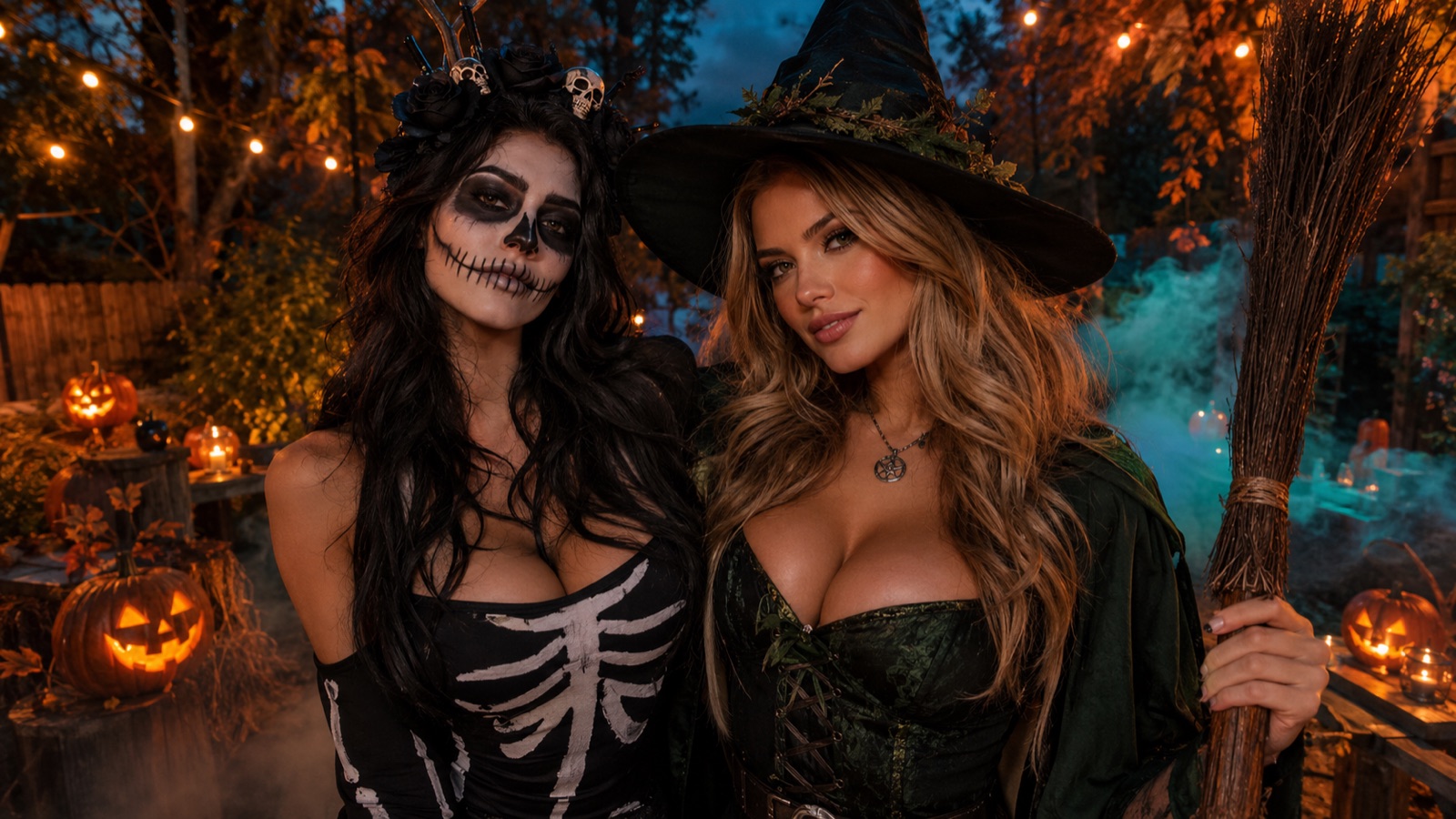
Halloween AI Photo Editor: A Practical Guide to Editing Existing Photos
Learn how to use a Halloween AI photo editor to improve backgrounds, makeup, lighting, and group shots without replacing your original photo. Includes prompts and export tips.
Read guide
AI Halloween Video Generator: Turn One Still Image Into a Cinematic Five-Second Clip
Turn one Halloween still into a five-second cinematic clip for TikTok, Reels and Shorts. Learn camera moves, stable faces, sound and a repeatable workflow.
Read guide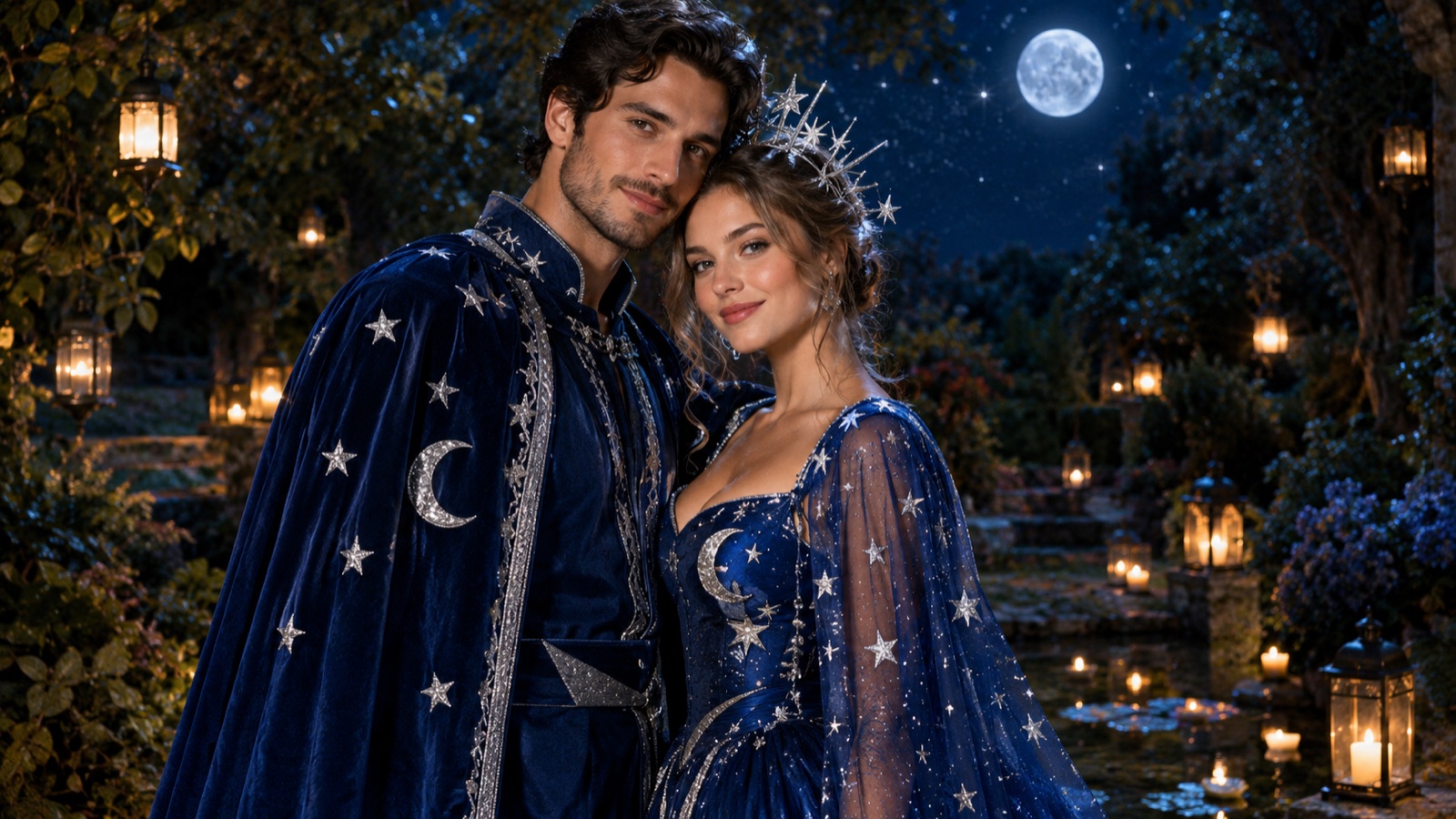
AI Couple Photo Generator: A Practical Guide to Two-Person Portraits
How to use an AI couple photo generator to merge two photos into one scene, keep both faces and proportions, match costumes, and avoid face swaps and extra people.
Read guide