
Halloween AI Photo Editor: A Practical Guide to Editing Existing Photos
Learn how to use a Halloween AI photo editor to improve backgrounds, makeup, lighting, and group shots without replacing your original photo. Includes prompts and export tips.
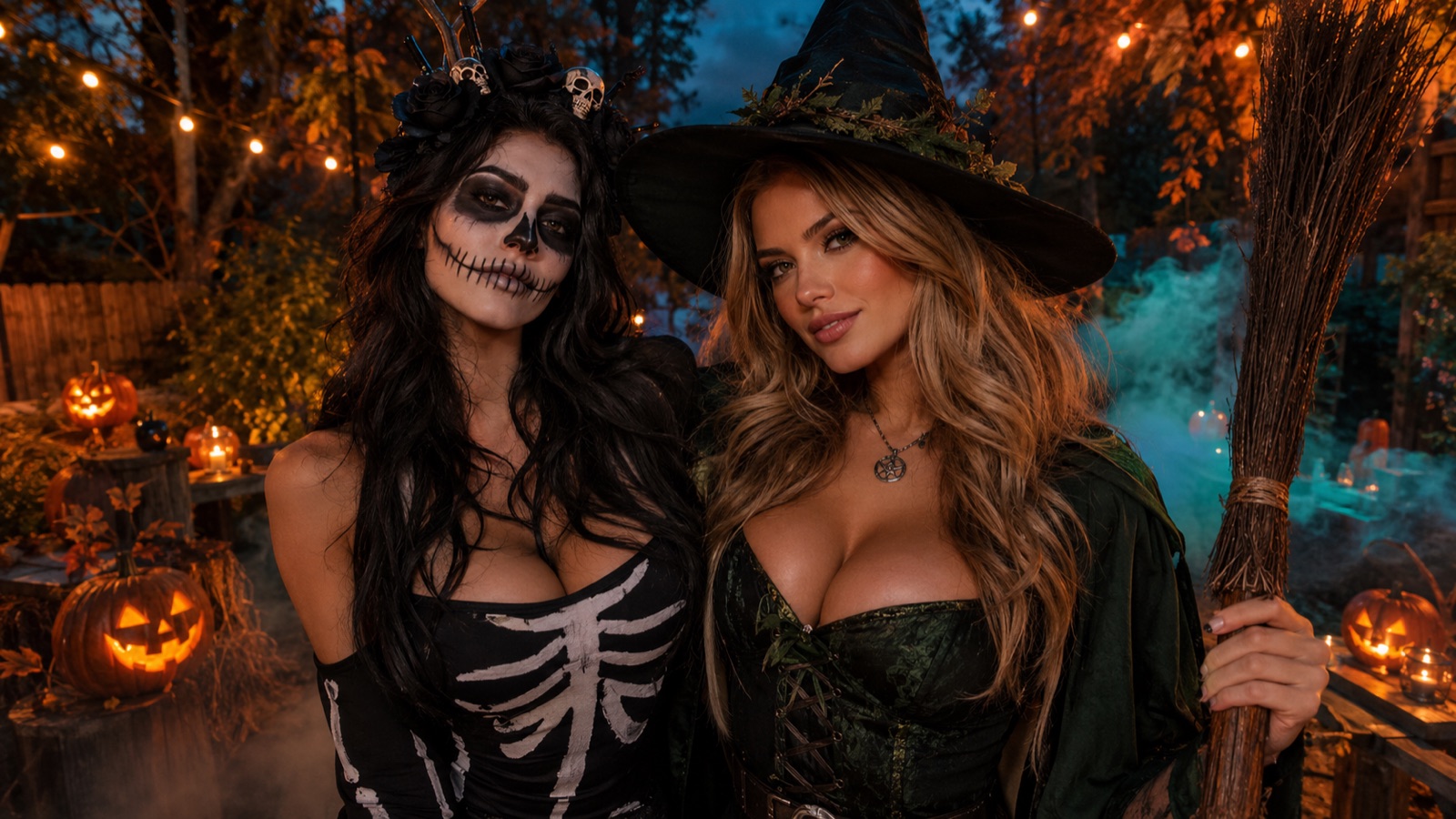
Key takeaways
- Edit an existing Halloween photo instead of replacing it with a new generation
- Add fog, lanterns, pumpkins, and cinematic light while keeping faces and group counts consistent
- Understand the difference between a filter and a guided AI edit
- Export settings for Instagram, TikTok, and print
What a Halloween photo editor should change, and what it should leave alone
A good Halloween AI photo editor improves the parts of your photo that set the mood: background, lighting, atmosphere, and small makeup details. It should not redraw your face, change your costume beyond recognition, or add or remove people. The goal is to make the original photo feel more like the scene you remember, not to generate a new image that happens to include you.
Leave alone the things that make the photo yours: facial features, skin tone, hair, body shape, and the number of subjects. If you are editing a group, every person should remain recognisable. If you have a pet, its markings and expression should stay the same. A useful test is to compare the edit with the original side by side and ask whether a friend would recognise everyone instantly.
- Change: background, fog, lighting direction, colour temperature, small makeup accents
- Leave alone: facial identity, skin texture, hair, body shape, group count, pet markings
- Avoid edits that add new people or remove existing ones unless you explicitly want a composite
- Keep the original file so you can compare and revert
The difference between a filter and a guided AI edit
A filter applies a fixed colour or contrast look across the whole image. It is fast and predictable, but it cannot add fog behind you, replace a messy room with a moonlit porch, or adjust skeleton makeup on one cheek. A guided AI edit uses a text instruction and often a reference image to change specific regions while preserving the rest. That makes it better suited to Halloween photos where the background and atmosphere matter as much as the colour grade.
In Flash Omni, image-to-image workflows let you upload your photo and describe the change. The editor routes the job to a model such as GPT Image 2, Nano Banana 2, Nano Banana Pro, Seedream 4.5, FLUX.2 Pro, or others listed in the workspace. Results vary by model, and no model guarantees an exact likeness. Treat the first output as a draft, then refine with a clearer prompt or a different model.
- Filter: global colour and tone, no structural change
- Guided AI edit: targeted changes with a prompt, often preserving identity
- Use filters for quick consistency across a photo dump
- Use guided edits when you need new background elements or makeup detail
Five edits that work on almost any Halloween photo
These five edits are reliable because they add atmosphere without touching faces. First, add low fog around the feet or behind the subjects. Second, place warm lantern light to one side for a cinematic glow. Third, replace a distracting background with a simple porch or wall. Fourth, add pumpkins or candles as foreground props. Fifth, adjust the overall colour grade toward warm amber and deep shadow.
Each edit should be applied in small steps. If you try to add fog, lanterns, pumpkins, and a new background in one prompt, the model may redraw too much. Start with the background, then add light, then atmosphere. Keep the subject description short and explicit: who is in the photo, what they are wearing, and what must not change. This reduces the chance of identity drift.
- Fog: low, soft, and behind the subjects
- Lantern light: warm, directional, and not on faces
- Background: simple and less detailed than the subjects
- Props: pumpkins and candles in the foreground, slightly out of focus
- Colour grade: warm highlights, cool shadows, moderate contrast
How to write an edit prompt with a clear before-and-after
A useful prompt describes the current photo and the desired change in plain language. Start with a short before statement: two friends in costumes standing in a living room with overhead light. Then state the after: same two friends, same costumes and faces, now on a porch with fog and warm lantern light. End with constraints: do not change faces, do not add or remove people, keep the group count at two.
Be specific about placement. Say where the fog sits, where the light comes from, and what stays in focus. Avoid vague words like spooky or amazing. Instead, use concrete terms: low fog at ankle height, warm amber light from the left, deep shadows on the right. If the result drifts, shorten the prompt and repeat the identity constraints. You can also try a different model in the workspace if one struggles with group consistency.
- Before: one sentence describing the original scene
- After: one sentence describing the target scene
- Constraints: faces, group count, pet markings, costume details
- Placement: where fog, light, and props sit
- Style: cinematic, warm, soft contrast
Couples, groups, and pets: keeping every subject consistent
Group photos are the hardest test for any AI editor. Models can lose a face, merge two people, or change a costume. To reduce this, name each subject and their position: left person in a witch hat, right person in a skeleton shirt, small dog between them. State the group count explicitly. If the model still drifts, try an edit that only changes the background and leaves the subjects untouched.
Pets need their own constraints. Mention fur colour, markings, and eye colour. Avoid prompts that ask the model to restyle the pet. For couples, keep physical contact and relative height the same. If you are editing a photo with more than four people, consider editing in smaller groups or using a simpler background change. No editor can guarantee perfect likeness, so always review at full size.
- Name each subject and position
- State the exact group count
- Describe pet markings and fur colour
- Keep physical contact and relative height
- Review at 100 percent zoom for face drift
Background ideas for indoor party photos
Indoor party photos often have clutter, mixed lighting, and distracting walls. A guided background replacement can simplify the scene without moving the subjects. Good options include a dim porch with carved pumpkins, a stone wall with hanging lanterns, a foggy forest edge, or a simple dark interior with warm string lights. Choose a background that matches the direction of light on your subjects.
If the original light comes from the left, keep the new scene lit from the left. Otherwise the edit will look pasted. Avoid backgrounds with strong patterns or text. Keep the background slightly darker and less detailed than the subjects so the eye stays on faces and costumes. For group photos, a simple background also reduces the risk of the model redrawing people while filling in details.
- Dim porch with carved pumpkins
- Stone wall with hanging lanterns
- Foggy forest edge with soft moonlight
- Dark interior with warm string lights
- Match light direction to the original photo
Export settings for Instagram, TikTok, and print
Export at the highest resolution you have, then resize for each platform. For Instagram feed, use 1080 by 1350 pixels for portrait or 1080 by 1080 for square. For Stories and TikTok, use 1080 by 1920 pixels. Keep the file as JPEG at high quality. Avoid heavy sharpening, which can make fog look noisy and skin look harsh.
For print, aim for 300 pixels per inch at the final print size. A 4 by 6 inch print needs 1200 by 1800 pixels. If your edited file is smaller, do not upscale aggressively. Print at a smaller size or accept softer detail. Always keep a master file with the original resolution and a separate export for social media so you can re-export later without repeating the edit.
- Instagram feed: 1080 by 1350 or 1080 by 1080
- Stories and TikTok: 1080 by 1920
- Print: 300 ppi at final size
- Keep a master file at original resolution
- Avoid over-sharpening after AI edits
When to stop editing and take a better photo
AI editing cannot fix a photo where faces are blurred, eyes are closed, or the group is badly lit. If you have spent more than a few attempts and the faces still drift, stop. A new photo with better light and a simpler background will take less time and look more natural. This is especially true for pets and large groups.
Take the new photo near a window or with a single warm lamp to one side. Clear the background or move closer to a plain wall. Shoot a few frames with and without flash. Then use the editor only for atmosphere: fog, lanterns, and colour grade. That combination gives you a stronger result than forcing a difficult edit on a weak original.
- Stop if faces blur or group count changes
- Stop if eyes are closed or motion blur is heavy
- Reshoot near a window or single warm lamp
- Use the editor for atmosphere, not rescue
Keep exploring
Prompt recipes
Prompt recipes are kept in English because image and video models follow English instructions most reliably. The rest of the guide is in your language.
Warm pumpkin-lantern party edit
Edit the uploaded photo. Keep the two friends exactly as they are: same faces, same costumes, same poses, same group count of two. Replace the background with a dim porch at night, carved pumpkins on the steps, and hanging lanterns. Add warm amber light from the left side, soft shadows on the right, and low fog around the feet. Do not change facial features, skin tone, hair, or body shape. Do not add or remove people. Keep the subjects in sharp focus and the background slightly softer. Cinematic colour grade with warm highlights and deep shadows.
Moonlit fog background replacement
Edit the uploaded photo. Preserve every subject exactly: same faces, same expressions, same clothing, same number of people and pets. Replace the background with a foggy forest edge under soft moonlight. Add low fog at ankle height and a cool blue-grey light from behind, with a subtle warm rim light on the subjects. Do not alter facial identity, fur markings, or costume details. Keep the group count unchanged. The background should be less detailed than the subjects. Moderate contrast, cool shadows, gentle highlights, no text or logos.
Skeleton makeup without changing the face
Edit the uploaded portrait. Keep the face structure, skin tone, hair, and expression exactly the same. Add skeleton makeup only: dark eye sockets, a small nose triangle, and thin white lines across the lips and cheeks. Do not reshape the face, change the jawline, or alter the eyes beyond the makeup. Keep the original lighting direction and add a subtle warm lantern glow from the right. Background stays simple and dark. No new people, no costume changes, no text.
Frequently asked questions
Can a Halloween AI photo editor change the background without changing faces?
Yes, if you use an image-to-image workflow and write clear constraints. State the group count, describe each subject, and say do not change faces. Results vary by model, so review at full size. Some models handle background replacement better than others. Keep the original file and try a different model if identity drifts.
What is the difference between a filter and a guided AI edit?
A filter applies a fixed colour or contrast look across the whole image. A guided AI edit uses a text instruction to change specific regions, such as adding fog or replacing a background, while aiming to preserve the rest. Filters are faster and more predictable. Guided edits are more flexible but need careful prompts and review.
How do I keep my pet consistent in a Halloween edit?
Describe your pet's fur colour, markings, and eye colour in the prompt. Say do not restyle the pet and keep the pet in the same position. Avoid prompts that ask for costume changes on the pet. If the model changes markings, try a simpler edit that only adjusts the background and lighting.
Which export size is best for Instagram and TikTok?
For Instagram feed, use 1080 by 1350 pixels for portrait or 1080 by 1080 for square. For Stories and TikTok, use 1080 by 1920 pixels. Export as high-quality JPEG and avoid heavy sharpening. Keep a master file at the original resolution so you can re-export later without repeating the edit.
Can I print an AI-edited Halloween photo?
Yes, if the edited file has enough resolution. Aim for 300 pixels per inch at the final print size. A 4 by 6 inch print needs 1200 by 1800 pixels. If the file is smaller, print at a smaller size rather than upscaling aggressively. Always keep the original file for reference.
When should I stop editing and take a new photo?
Stop if faces are blurred, eyes are closed, or the group count keeps changing after a few attempts. A new photo with better light and a simpler background will usually look more natural. Use the editor for atmosphere such as fog and lanterns, not for rescuing a weak original.
Turn this guide into a finished visual
Open the image editor or video workspace, paste your prompt, and see the result before you spend credits. Prices and model availability are shown before you confirm a run.
- Secure checkout
- Credits shown before you confirm
- Support from the product team
This guide is maintained by the Flash Omni editorial team. Product limits, model availability, and prices can change, so verify the current workspace before you buy credits.
Related guides
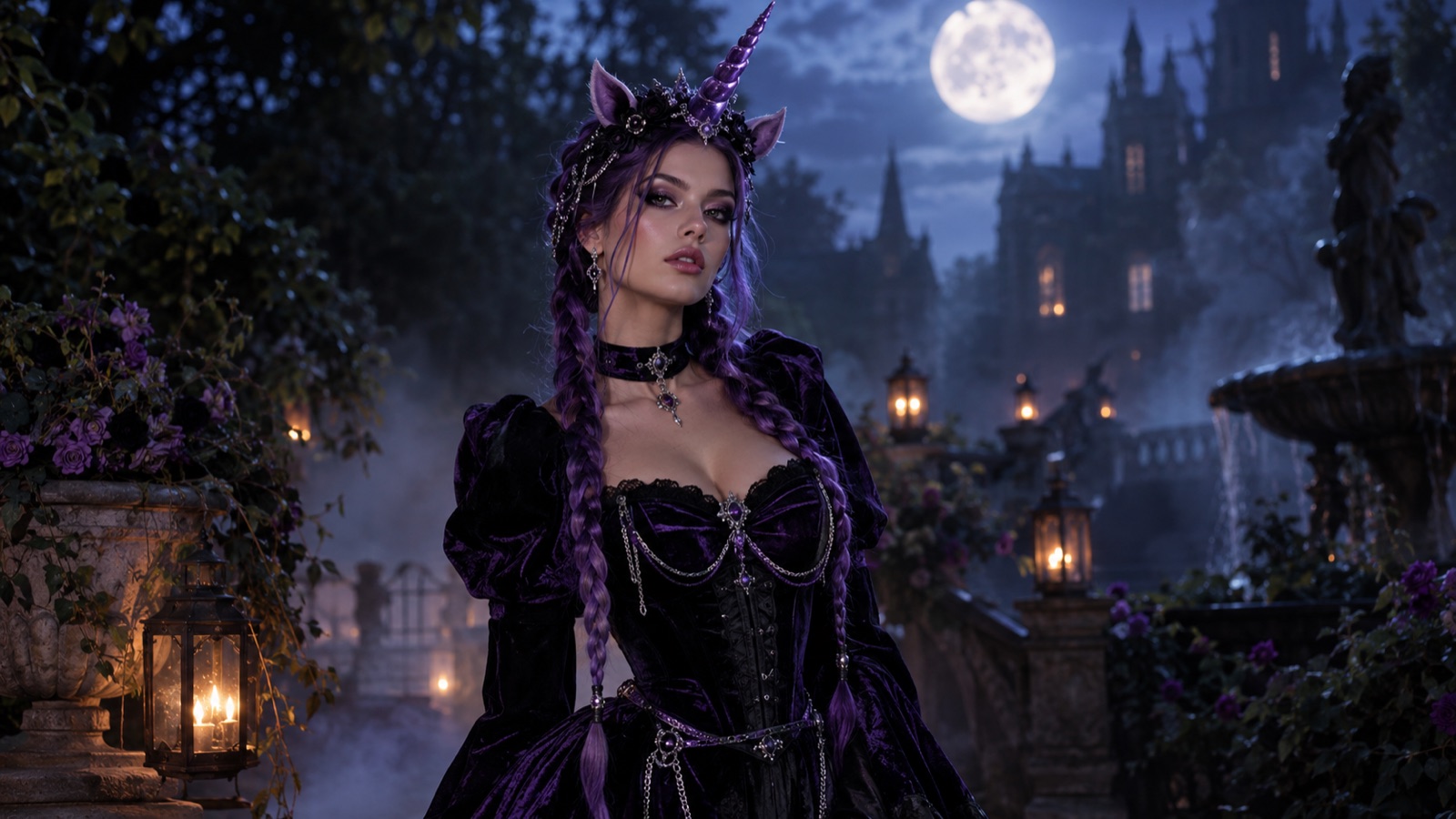
AI Halloween Costume Generator: Preview Your Costume on Your Own Photo Before You Buy
Use an AI Halloween costume generator to preview a costume on your own selfie before buying or sewing. Learn prompts, photo tips, mistakes and short video steps.
Read guide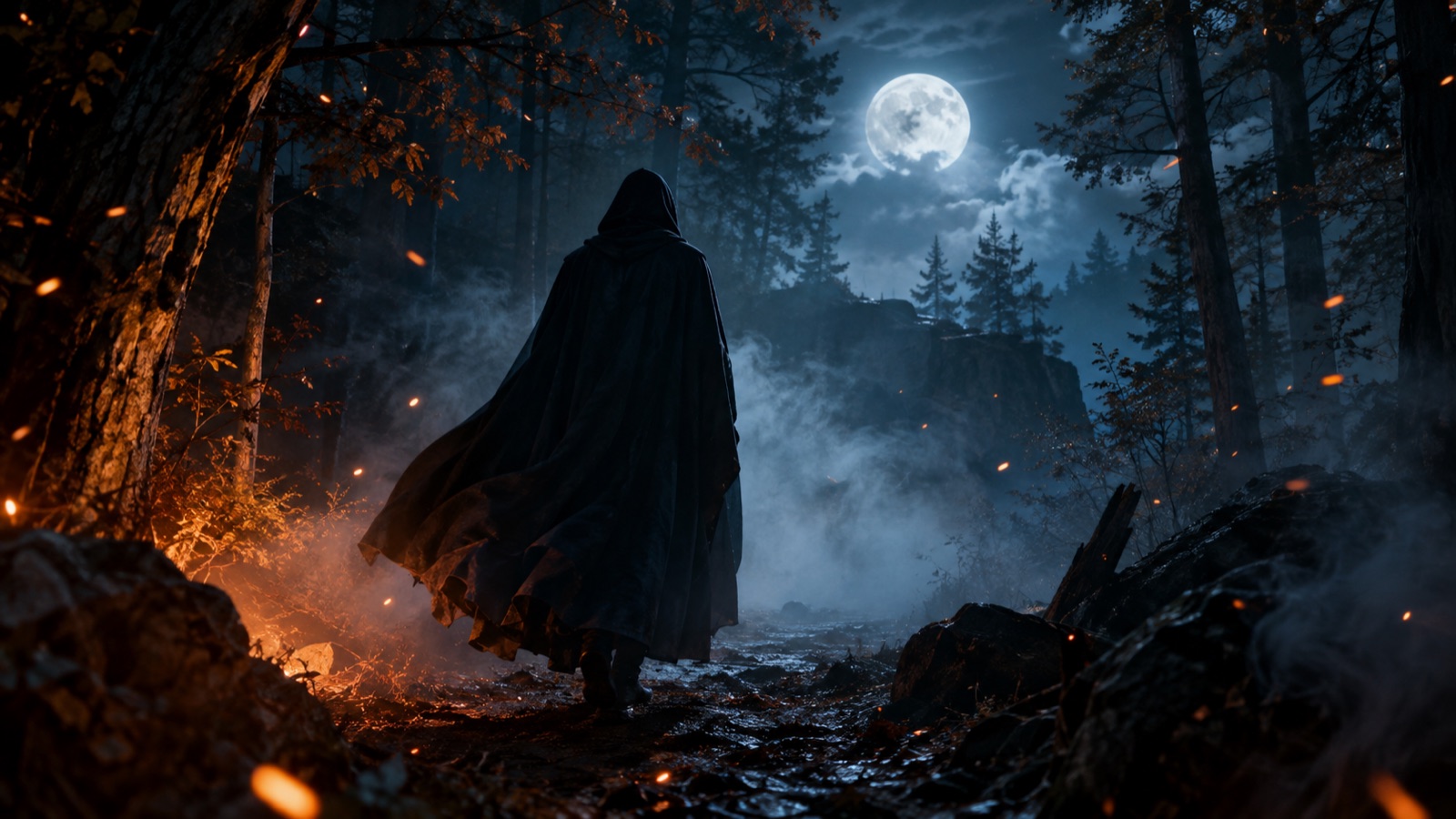
AI Halloween Video Generator: Turn One Still Image Into a Cinematic Five-Second Clip
Turn one Halloween still into a five-second cinematic clip for TikTok, Reels and Shorts. Learn camera moves, stable faces, sound and a repeatable workflow.
Read guide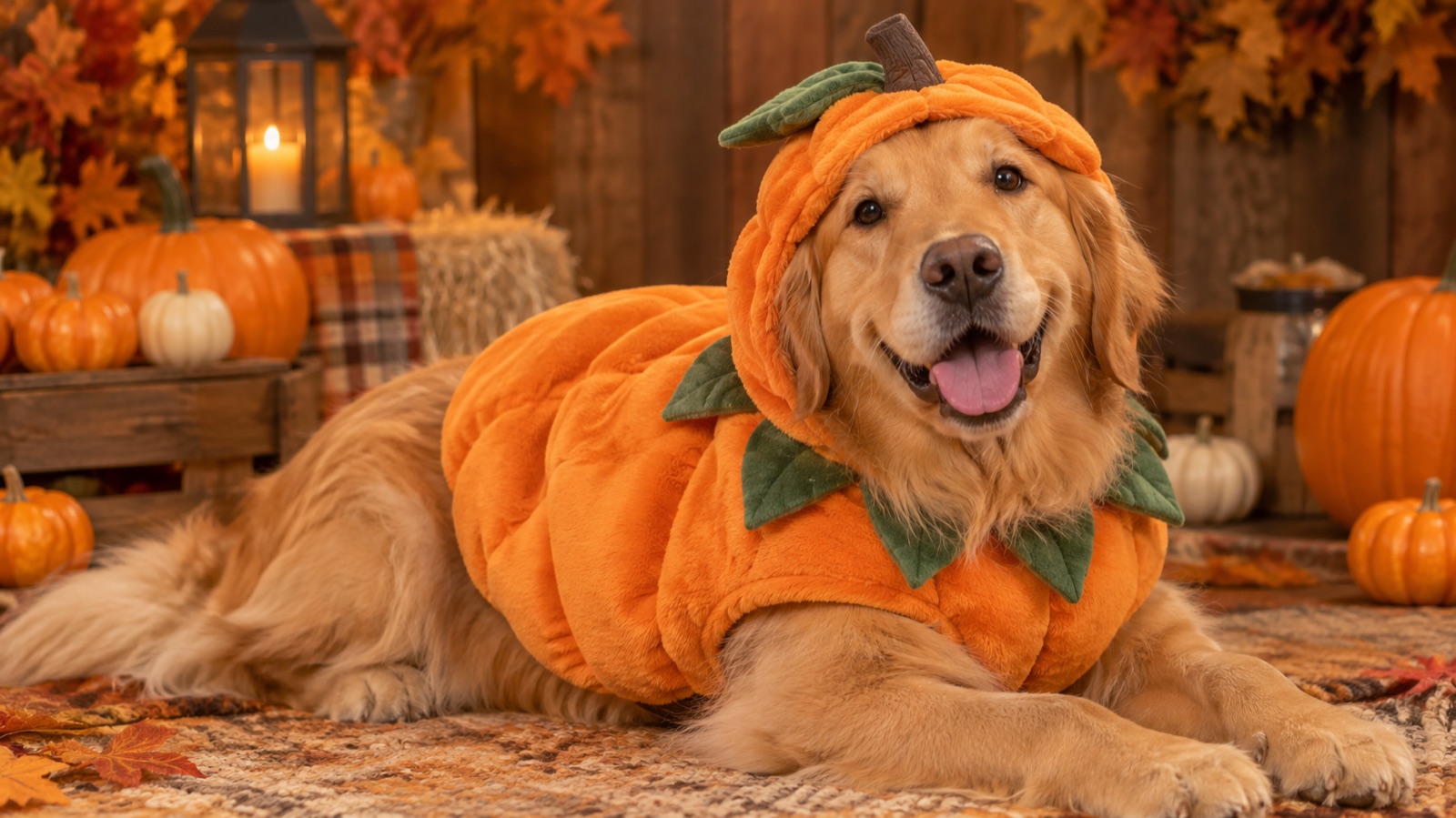
AI Pet Portrait Generator: A Practical Guide to Costume and Studio Portraits of Your Dog or Cat
Use an AI pet portrait generator to create costume and studio portraits of your dog or cat while keeping breed, markings and eye colour. Includes prompts and print tips.
Read guide