
AI Halloween Video Generator: Turn One Still Image Into a Cinematic Five-Second Clip
Turn one Halloween still into a five-second cinematic clip for TikTok, Reels and Shorts. Learn camera moves, stable faces, sound and a repeatable workflow.
Key takeaways
- Animate a single Halloween still into a five-second clip with controlled, subtle motion
- Keep costume, face and lighting consistent instead of chaotic transformation
- Use push-in, slow pan and parallax fog moves that suit vertical short-form video
- Follow a repeatable weekly workflow for seasonal content across TikTok, Reels and Shorts
Why a Halloween still deserves motion
Most creators already have the hard part finished: a costume shot, a prop photo, a party poster or a moody forest portrait. A still can stop a scroll, but a short loop with gentle movement holds attention for the full three seconds that decide whether someone keeps watching. That is the practical case for an AI Halloween video generator. You are not rebuilding the scene, you are giving the frame you already trust a small amount of life.
The product promise here is deliberately modest. Flash Omni animates one still image into roughly a five-second clip, and the aim is subtle motion rather than a dramatic transformation. A cloak shifts, fog drifts, a head turns slightly. This suits creators who want atmosphere, not spectacle, and who would rather protect the look of their original image than gamble on a generated scene that loses the costume entirely.
- Start from an image you already like, not a blank prompt
- Choose motion that supports the mood rather than replacing it
- Treat the clip as a loop or a hook, not a full narrative
- Keep expectations realistic: five seconds is a shot, not a scene
What makes a Halloween video loop feel cinematic
Cinematic is less about resolution and more about restraint. A loop feels filmic when the camera appears to be mounted on something, when movement has a consistent direction, and when the light does not flicker unpredictably between frames. Halloween footage benefits from darkness, but darkness plus random motion reads as noise. Slow, single-direction movement with a stable exposure is what makes a short clip feel intentional.
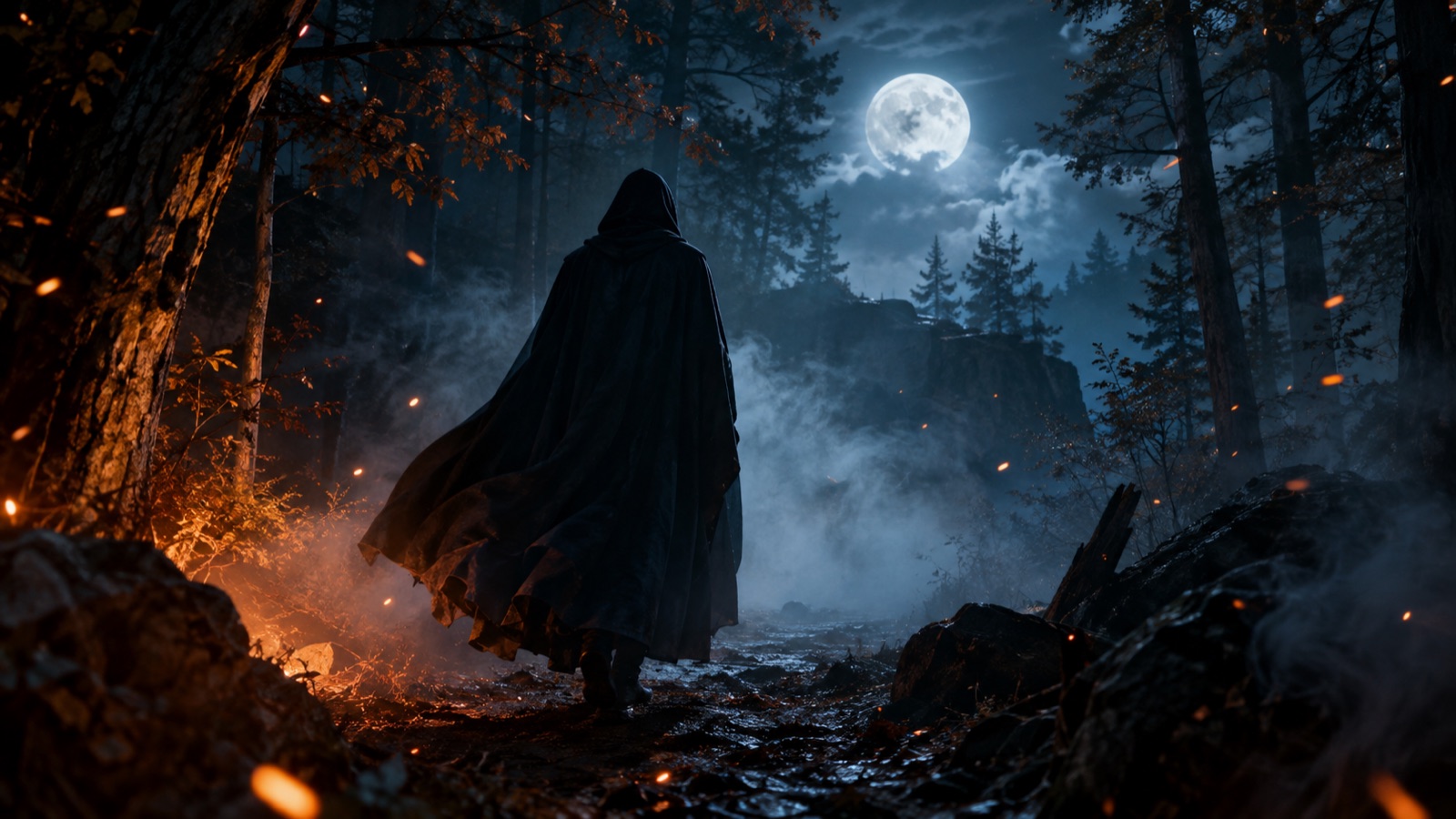
Composition does most of the remaining work. Leave negative space where fog or shadow can move, keep the subject off dead centre if you plan a pan, and avoid cropping so tightly that a push-in has nowhere to travel. A cloaked figure in a moonlit forest works because the trees give parallax something to do and the moonlight gives the face a readable edge. Build or choose images with that breathing room in mind.
- One dominant camera move per clip
- Consistent light direction across the whole five seconds
- Negative space reserved for fog, dust or shadow
- A subject with a clear silhouette against the background
- A loop point that does not jump when it restarts
Image-to-video versus text-to-video for Halloween content
Text-to-video is useful when you have no asset and need a generic atmosphere shot. You describe a haunted corridor and accept whatever the model returns. The trade-off is control: costumes, faces and specific props are invented fresh each run, so matching a real outfit or a client brief becomes a lottery. For creators with an existing Halloween image, that is usually the wrong starting point.
Image-to-video starts from your frame, so identity, palette and composition are already fixed. Flash Omni exposes image-to-video, text-to-video and reference-to-video workflows, and video runs on Seedance 2.0. For costume makers and small brands, image-to-video is the safer route because the thing you are promoting is already in the picture. Text-to-video remains handy for background plates, transitions or mood boards where no specific subject needs to survive.
- Use image-to-video when a real costume, face or product must stay recognisable
- Use text-to-video for generic atmosphere, backdrops and B-roll
- Use reference-to-video when you want style guidance without a finished frame
- Test one variable at a time so you know what changed the result
A five-second shot list that is easy to control
Five seconds is roughly three beats. Beat one establishes the frame, beat two introduces the motion, beat three settles or loops. Write the shot list before you touch the tool. A simple and reliable structure is: hold, move, hold. The opening hold gives viewers a moment to read the image, the move carries the middle, and the closing hold makes the loop feel deliberate rather than cut off.
Keep each shot to a single idea. If the camera pushes in, do not also spin the subject. If fog drifts, keep the figure still. This is the difference between a clip that looks directed and one that looks like a settings panel was left on default. A practical shot list for a Halloween still might be a moonlit garden push-in, a lantern flicker with drifting fog, and a slow head turn with fabric movement.
- Shot one: slow push-in on the hero image, no subject motion
- Shot two: static camera, fog and lantern light doing the work
- Shot three: slight head turn with cloak or sleeve movement
- Shot four: slow lateral pan across the scene for variety
- Shot five: near-still frame for a clean loop and end card
Camera moves: push-in, slow pan and parallax fog
A push-in is the most forgiving move for a single still. The frame tightens gradually, which adds tension without demanding new information. Keep the speed low and the distance small, perhaps five to ten per cent of the frame across the clip. Fast push-ins expose artefacts because the model has to invent detail at the edges, while a gentle move keeps the original image readable throughout.
A slow pan works when the image has width and a clear horizon or treeline. Parallax fog is the trick that sells depth: foreground fog moves faster than background fog, so the scene reads as layered rather than flat. Ask for fog that drifts laterally at a consistent speed and stays below the subject's face. If the fog climbs over the eyes, the clip stops being a portrait and becomes a texture experiment.
- Push-in: small distance, constant speed, no zoom wobble
- Slow pan: keep the subject in frame for at least half the clip
- Parallax fog: foreground faster, background slower, face kept clear
- Avoid combining pan and push-in unless you have tested the result
- Check the first and last frame for a clean loop
How to keep faces and costumes stable across frames
Stability comes from the source image and the prompt. A sharp, well-lit face with clear features gives the model more to hold on to than a dark, soft or heavily filtered portrait. Costumes with strong shapes, distinct trim and readable colour blocks survive motion better than busy patterns. If you can, prepare a cleaner version of the image first using image-to-image, then animate that.
In the prompt, name what must not change. State that the face, costume silhouette, colour and lighting direction stay consistent, and describe motion as small and slow. Avoid words like transform, morph or melt unless you genuinely want that. Expect limits: very small faces, heavy occlusion and extreme low light are where drift appears first, and no tool can promise an exact likeness across every frame.
- Use a sharp, evenly lit source frame
- Describe the motion in degrees, not adjectives
- Explicitly list what must stay the same
- Keep clips short and re-run rather than over-correcting
- Review frame by frame at the start and end of the clip
Sound, captions and the first three seconds
The first three seconds carry the decision. Open on the strongest frame, not a fade from black. Put the subject large enough to read on a phone, and let motion begin almost immediately so the clip does not look like a static post. If you use text, place it where the fog or camera move will not collide with it, and keep it to a few words.
Sound does a lot of heavy lifting for Halloween. A low drone, a single distant chime or a soft wind layer is often enough. Keep music licensed or generated, and mix so the ambience sits under any voiceover. Captions should be large, high contrast and short, since many viewers watch muted. Add a subtle audio cue at the loop point so repeated plays feel intentional rather than accidental.
- Lead with the strongest frame, no slow fade in
- Add motion within the first second
- Use one ambient layer and one accent sound
- Keep captions short, bold and clear of moving fog
- Design the loop so the restart is not jarring
Export sizes and a repeatable weekly workflow
Export vertical 1080 by 1920 for TikTok, Reels and Shorts, which all favour full-screen 9:16. Keep the subject centred with safe margins top and bottom for interface overlays. If you also need a feed post, export a 1080 by 1350 version and a 1920 by 1080 cut for YouTube. Bitrate matters more than file size for dark scenes, so avoid over-compressing fog and shadow gradients.
Seasonal content rewards a rhythm. Pick one day to shoot or generate stills, one day to animate three to five clips, and one day to caption and schedule. Reuse a single prompt recipe with small variations so your feed looks consistent. Flash Omni shows credit costs before you confirm, with a one-time pack from USD 19.99 for 500 credits and monthly plans from USD 14.99, so you can budget a weekly batch rather than guessing.
- Monday: collect or generate five stills
- Tuesday: animate three clips with one recipe
- Wednesday: add sound, captions and covers
- Thursday: schedule across platforms
- Friday: review retention and keep the best recipe
Keep exploring
Prompt recipes
Prompt recipes are kept in English because image and video models follow English instructions most reliably. The rest of the guide is in your language.
Moonlit garden push-in
Animate this still image into a five-second cinematic clip. Keep the subject's face, costume silhouette, fabric colour and moonlight direction exactly as they appear in the source. Apply a very slow push-in of roughly eight per cent across the full duration, with constant speed and no zoom wobble. Add faint drifting mist low in the frame, moving laterally and staying below the subject's chin. Preserve the original contrast and grain. Do not transform the figure, do not change the outfit, and do not add new objects. End on a stable frame suitable for looping.
Lantern flicker and drifting fog
Use this Halloween still as the only source frame and animate it for five seconds. The camera stays locked off with no pan and no zoom. Introduce a gentle lantern flicker that warms and dims the existing light without changing its direction, plus slow fog drifting from left to right in the background. Keep the subject completely still, with the face, mask and costume details unchanged frame to frame. Maintain the original colour grade and shadow depth. Avoid chaotic particle bursts, avoid morphing, and keep the final frame close to the first so the clip loops cleanly.
Slow head turn with fabric movement
Animate this portrait into a five-second clip with restrained motion. The subject turns their head slowly by a small angle, no more than fifteen degrees, while the cloak or sleeve fabric shifts gently as if in light wind. Keep facial features, skin tone, makeup and costume trim consistent across every frame. Lighting stays fixed in direction and intensity. Camera holds steady with a barely perceptible drift. Do not change the background, do not alter the outfit design, and do not add extra figures. Finish on a calm frame that reads well as a loop.
Frequently asked questions
How long are the clips this tool produces?
The intended output is a short clip of around five seconds, which suits TikTok, Reels and Shorts as a hook or loop. Five seconds is a single shot rather than a full scene, so plan to combine several clips or repeat one with different captions if you need a longer edit.
Will my costume and face stay the same?
Stability depends on the source image and the prompt. Sharp, evenly lit frames with clear costume shapes hold up best, and naming what must not change in the prompt helps. Some drift is possible, especially with small faces or very dark images, and no tool can promise an exact likeness across every frame.
Should I use image-to-video or text-to-video?
Use image-to-video when a real costume, face or product must stay recognisable, because your frame is the starting point. Text-to-video is better for generic atmosphere shots, backdrops and transitions where no specific subject needs to survive the generation.
What export size works for all three platforms?
Vertical 1080 by 1920 covers TikTok, Reels and Shorts, which all favour full-screen 9:16. Keep the subject centred with safe margins for interface overlays, and export a 1080 by 1350 version for feed posts plus a 1920 by 1080 cut if you also publish to YouTube.
How much does it cost to make a batch of clips?
Flash Omni shows credit costs before you confirm each job. A public one-time pack starts at USD 19.99 for 500 credits, and monthly plans start at USD 14.99 for 500 credits. Costs vary by model and workflow, so check the confirmation screen before running a weekly batch.
Can I use the clips commercially?
Check the terms attached to the models and providers you use before publishing for a brand or client. Flash Omni routes jobs through model providers and routing partners that vary by model, and rights can differ between them. This guide cannot promise commercial rights or refunds on your behalf.
Turn this guide into a finished visual
Open the image editor or video workspace, paste your prompt, and see the result before you spend credits. Prices and model availability are shown before you confirm a run.
- Secure checkout
- Credits shown before you confirm
- Support from the product team
This guide is maintained by the Flash Omni editorial team. Product limits, model availability, and prices can change, so verify the current workspace before you buy credits.
Related guides
Image to Video AI Generator: A Practical Guide to Controlled Motion
Learn how to animate a still image with an image to video AI generator. Covers image prep, natural motion, camera prompts, stable faces, loops and export settings.
Read guide
Text to Video AI Generator: A Practical Guide for Creators
Learn how to turn written scenes into short video clips with a text to video AI generator. Prompt recipes, formats, cost planning, and honest limits for creators.
Read guide
AI Halloween Costume Generator: Preview Your Costume on Your Own Photo Before You Buy
Use an AI Halloween costume generator to preview a costume on your own selfie before buying or sewing. Learn prompts, photo tips, mistakes and short video steps.
Read guide