
Image to Video AI Generator: A Practical Guide to Controlled Motion
Learn how to animate a still image with an image to video AI generator. Covers image prep, natural motion, camera prompts, stable faces, loops and export settings.
Key takeaways
- Why a still image gives you more control than a blank text prompt
- A pre-flight checklist for resolution, edges and background before animating
- Five motion types that tend to read as natural rather than synthetic
- How to separate camera movement from subject movement in one prompt
- Practical export settings for vertical social, square feed and widescreen
Why image to video is more controllable than text to video
Text to video asks a model to invent composition, subject, lighting and motion at the same time. Every one of those decisions is a guess, so a small change in wording can move the horizon, change a face or alter the colour palette. Image to video starts from a frame you already approved, so the model spends its effort on movement rather than invention. That single shift removes most of the randomness creators complain about.
When you supply the first frame, composition becomes a constraint rather than a variable. If your subject sits left of centre with negative space on the right, that relationship usually survives the animation. Lighting direction, wardrobe colour and background structure tend to hold because the model is extrapolating from pixels it can see, not from a sentence it must interpret.
This does not make the result automatic. The model still decides how fabric folds, how hair settles and how shadows travel. But you are reviewing motion against a known reference, which makes iteration faster and far more predictable. For social teams and ecommerce brands working to a fixed layout, that predictability is the difference between a usable clip and a reshoot.
- You approve the frame before spending time on motion
- Layout, crop and brand colours stay close to the original
- Fewer prompt rewrites because composition is already fixed
- Easier to brief a colleague: the reference image is the brief
The image quality checklist before you animate
Most disappointing clips trace back to the source image, not the model. Before you animate, check resolution. A frame that looks sharp on a phone screen may be too small once the model needs to invent plausible detail between frames. Aim for a clean, well-lit original with minimal compression artefacts, especially around edges where the subject meets the background.
Inspect the edges next. Cropped limbs, hair merging into a busy background, or a subject touching the frame border all give the model less room to move. A little breathing space around the subject usually produces calmer, more believable motion. Also check for baked-in text, watermarks or heavy filters, since these are hard to keep stable once pixels start shifting.
Finally, think about what should move. A still life with a plain wall offers few motion cues, while fabric, hair, smoke or reflective surfaces give the model something to animate. If your image has none of these, plan a camera move instead of a subject move. Flash Omni lists image models such as GPT Image 2, Nano Banana 2, Seedream 4.5 and FLUX.2 Pro in its image workspace, so you can prepare or clean up a frame before sending it to video.
- Use the largest clean original you have
- Leave space around the subject so motion has room
- Avoid heavy sharpening, which can amplify flicker
- Remove stray text and logos you cannot keep stable
- Prefer images with fabric, hair, smoke or reflections
Five motions that usually look natural
Subtle motion reads as real because it matches how cameras and bodies actually behave. A slow push in, a gentle lateral drift, a soft parallax between foreground and background, a small head turn, and fabric or hair moving in a light breeze are the five moves that most often survive scrutiny. Each one changes a small number of pixels per frame, which gives the model less opportunity to drift.
Large gestures are harder. A full body spin, a hand reaching toward camera or a subject walking across frame forces the model to invent anatomy and occlusion it cannot see. Those can work, but expect more attempts and more review time. If you need a big move, consider splitting it into two shorter clips and cutting between them.
Match the motion to the subject. Portraits suit head turns and breathing. Products suit slow rotation and shifting highlights. Fashion and lifestyle frames suit fabric movement. Landscapes suit slow drifts and parallax. Choosing a motion the scene already implies is the simplest way to keep results believable.
- Slow push in for emphasis and intimacy
- Gentle lateral drift for lifestyle and landscape frames
- Soft parallax to add depth without distortion
- Small head turn for portraits
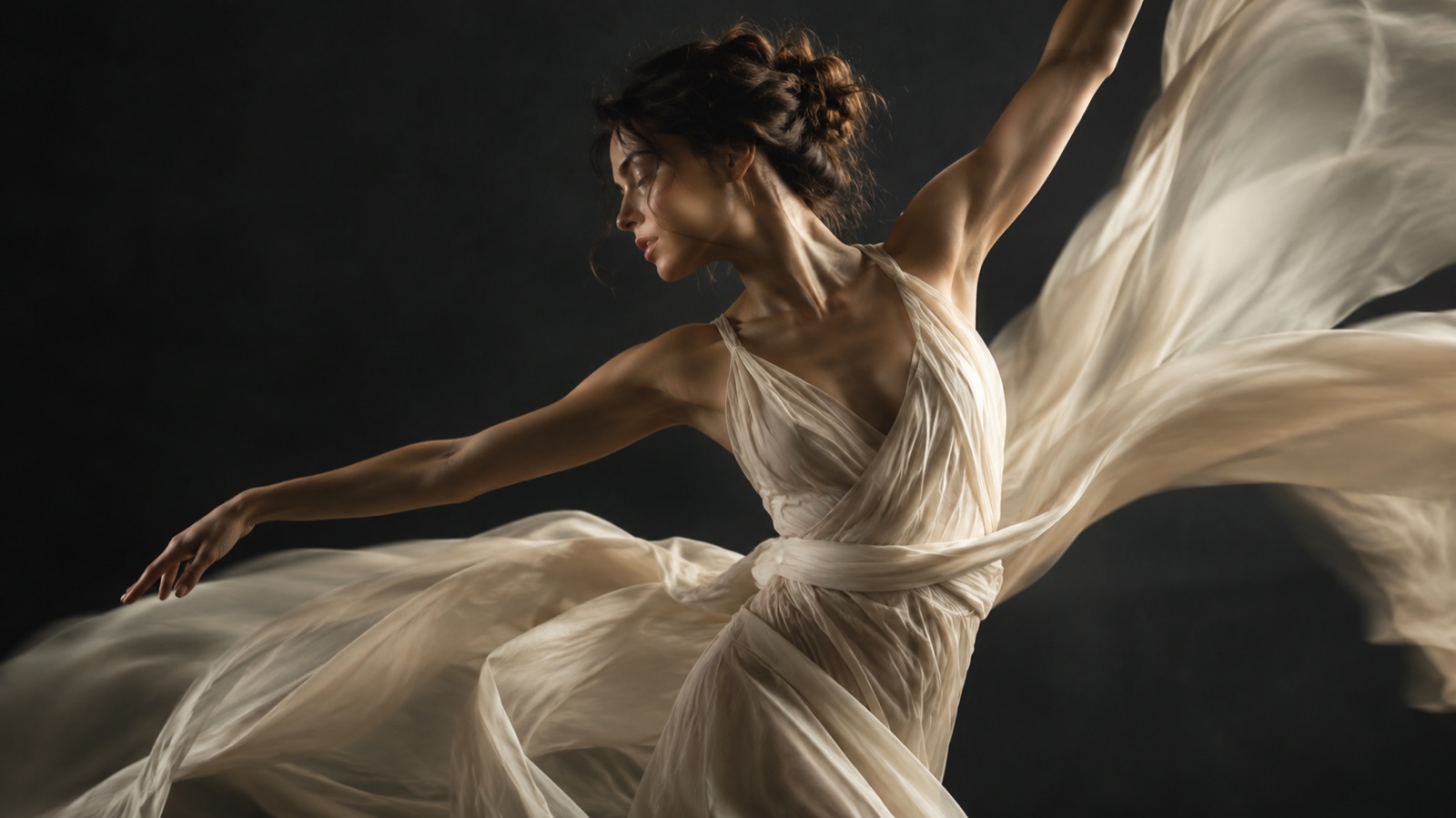
- Fabric or hair movement for fashion and textile shots
Prompting camera movement and subject movement separately
The most common prompting mistake is mixing camera and subject instructions into one dense sentence. The model then blends them, so a request for a slow push in also nudges the subject forward. Write two short clauses instead: one that describes what the camera does, and one that describes what the subject does. Keep each clause to a single idea.
For the camera, use language borrowed from film: slow push in, gentle dolly left, static locked-off frame, slight handheld drift. For the subject, describe a small physical action: turns her head slightly to the left, breathes gently, fabric lifts in a light breeze. Avoid stacking three actions on one subject, because the model will average them into something vague.
It also helps to state what should not change. Phrases such as keep the composition fixed, keep the background static and preserve the original framing act as guardrails. They are not guarantees, but they reduce unintended drift. Review the first second closely, because that is where most unwanted movement appears.
- One clause for camera, one clause for subject
- Use film vocabulary for camera moves
- Describe a single small action per subject
- State explicitly what must stay static
- Review the opening second before judging the clip
Keeping faces, hands and text stable
Faces drift because the model has limited information about the sides of a head it has never seen. A slow head turn of a few degrees is usually safe. A full profile turn asks the model to invent an ear, a jawline and a cheekbone, and that is where identity starts to slip. Keep turns small and keep the face reasonably large in frame.
Hands are harder still. Fingers are small, self-similar shapes, and small errors are very visible. If hands are in the shot, keep them still or partly out of frame. Avoid prompts that ask for gestures, waving or object handling unless you are prepared to review several attempts. Text behaves similarly: lettering is unforgiving, so keep on-image text static and avoid camera moves that skew it.
Be honest about limits. No current image to video system can promise exact likeness or perfect text preservation across a long clip. Plan for review, keep clips short, and treat any frame containing critical text or a recognisable face as something to check carefully before publishing.
- Keep head turns to a few degrees
- Keep hands still or crop them out
- Hold on-image text static and avoid skewing moves
- Keep clips short to limit cumulative drift
- Always review frames with faces or text before publishing
Looping and seamless transitions
A seamless loop needs the last frame to resemble the first. The easiest way to get there is to choose a motion that returns to its starting position, such as a gentle sway, a slow breathing cycle or a soft light shift. Motions that travel in one direction, like a long dolly, rarely loop cleanly without editing.
When you plan a loop, keep the motion small and symmetrical. Ask for a slow, even movement that returns to the original pose, and avoid anything that accumulates, such as drifting hair or a rotating product that keeps turning. If the clip does not loop perfectly, a short cross dissolve in your editor often hides the seam well enough for social use.
For transitions between clips, animate two stills from the same shoot with matching camera language. If both clips use a slow push in, a straight cut between them feels intentional. Matching motion direction matters more than matching content, because the eye follows movement first.
- Choose motions that return to the start position
- Keep loops short and the movement even
- Avoid accumulating motion such as continuous rotation
- Use a short cross dissolve to hide small seams
- Match camera direction across clips you plan to cut together
Best export settings for each platform
Export settings matter more than most creators expect, because aggressive compression can undo careful motion work. For vertical social formats, render at 1080 by 1920 and keep the frame rate consistent with the motion. Slow, subtle moves often look better at 24 or 25 frames per second, while faster motion benefits from 30. Avoid mixing frame rates within one edit.
For square feed placements, 1080 by 1080 is a safe baseline. For widescreen, 1920 by 1080 remains the practical standard. Keep bitrates reasonably high for delivery, then let the platform transcode. Uploading a clean, well-encoded master reduces banding in gradients, which is where subtle motion most often falls apart.
Audio is optional for most image to video work, but if you add music, check that the loop point aligns with the beat. Also keep a silent master so you can re-version the clip for different placements without re-rendering the video.
- Vertical: 1080 by 1920, 24 to 30 fps
- Square: 1080 by 1080
- Widescreen: 1920 by 1080
- Keep a high quality master and a silent master
- Check gradients for banding after compression
A simple workflow for product and portrait clips
Start with the still. If the original needs cleanup, use an image workflow first: Flash Omni offers text to image and image to image, with models including Nano Banana Pro, Seedream 5 Lite, Qwen Image, Ideogram and Grok Imagine listed in the workspace. Fix the crop, remove distractions and settle the lighting before any motion is added.
Then write a two-clause prompt: one camera instruction and one subject instruction. Keep the clip short, review the opening second, and adjust one variable at a time. Video runs on Seedance 2.0, and jobs are routed through providers such as KIE, with model providers and routing partners varying by model. Image generation costs credits shown before confirmation, with a one-time pack from USD 19.99 for 500 credits and monthly plans from USD 14.99 for 500 credits.
For products, favour a slow turntable or a shifting highlight over dramatic movement. For portraits, favour a small head turn and gentle breathing. Finish by exporting a clean master, then version it for each placement. This sequence keeps costs predictable and makes it easy to repeat a look across a campaign.
- Clean and crop the still before animating
- Write one camera clause and one subject clause
- Change one variable per attempt
- Keep clips short and review the first second
- Export a master, then version per platform
Keep exploring
Prompt recipes
Prompt recipes are kept in English because image and video models follow English instructions most reliably. The rest of the guide is in your language.
Portrait with a slow head turn
Using the supplied portrait as the fixed first frame, preserve the subject's identity, facial features, skin tone, hairstyle and clothing exactly as shown. Keep the original framing, crop, background and lighting direction unchanged. Animate a very slow head turn of only a few degrees to the subject's left, with natural blinking and gentle breathing. Keep the shoulders and torso almost still. Camera stays locked off with no zoom and no drift. Keep hands out of frame or motionless. Avoid changing the background, adding objects, or altering the jawline and ears. Subtle, realistic, documentary feel.
Product turntable with soft reflections
Use the supplied product photograph as the fixed first frame. Preserve the product's shape, label placement, colour, material and proportions exactly. Keep the background and surface unchanged. Animate a slow, even turntable rotation of roughly fifteen degrees, revealing a little more of the side, with soft studio reflections sliding gently across the surface. Camera remains static and level. Keep any on-image text upright and undistorted. Avoid changing the label, adding glare hotspots, or altering the product silhouette. Clean commercial lighting, calm and premium, no flicker, no sudden speed changes.
Fabric moving in a gentle breeze
Use the supplied fashion frame as the fixed first frame. Preserve the model's face, pose, body proportions and garment design exactly as shown. Keep the composition, crop and background unchanged. Animate a light breeze lifting the fabric edges and hair gently, with slow natural folds and soft shadow movement. Camera performs a very slight push in, no more than a few percent. Keep the face still apart from subtle breathing. Avoid changing the garment colour, adding new folds that distort the cut, or moving the background. Soft daylight, realistic cloth physics, calm pacing.
Frequently asked questions
What is an image to video AI generator?
It is a tool that takes a still image as the starting frame and generates a short video by predicting how the scene would move. Because the composition already exists, the model focuses on motion rather than inventing the whole scene, which usually makes results more predictable than starting from text alone.
Can I keep the subject's face consistent?
You can improve consistency by keeping head turns small, keeping the face large in frame and stating clearly that identity, features and hairstyle must be preserved. No system can promise exact likeness across a long clip, so review frames containing faces carefully before publishing and keep clips short.
How long should my clips be?
Short clips generally hold up better because small errors accumulate over time. Start with a few seconds, check the opening second closely, then extend only if the motion stays stable. For social use, short loops often perform well and are easier to keep seamless.
Why does my text or logo wobble?
Lettering is made of fine, high-contrast edges that are hard to hold steady once pixels begin shifting between frames. Keep on-image text static, avoid camera moves that skew the frame, and consider adding text in your editor after export rather than baking it into the source image.
Do I need a special image to start?
A clean, well-lit image with some space around the subject works best. Images containing fabric, hair, smoke or reflections give the model natural motion cues. If your image has none of these, plan a subtle camera move instead of a subject movement for more believable results.
How much does it cost to try?
Flash Omni shows credit costs before you confirm image generation. A public one-time credit pack starts at USD 19.99 for 500 credits, and monthly plans start at USD 14.99 for 500 credits. Video runs on Seedance 2.0, with model providers and routing partners varying by model.
Turn this guide into a finished visual
Open the image editor or video workspace, paste your prompt, and see the result before you spend credits. Prices and model availability are shown before you confirm a run.
- Secure checkout
- Credits shown before you confirm
- Support from the product team
This guide is maintained by the Flash Omni editorial team. Product limits, model availability, and prices can change, so verify the current workspace before you buy credits.
Related guides
Text to Video AI Generator: A Practical Guide for Creators
Learn how to turn written scenes into short video clips with a text to video AI generator. Prompt recipes, formats, cost planning, and honest limits for creators.
Read guide
AI Halloween Video Generator: Turn One Still Image Into a Cinematic Five-Second Clip
Turn one Halloween still into a five-second cinematic clip for TikTok, Reels and Shorts. Learn camera moves, stable faces, sound and a repeatable workflow.
Read guide
AI Product Photo Generator: A Practical Ecommerce Guide
A practical guide to using an AI product photo generator for ecommerce: what to preserve, scene recipes, lighting language, catalog consistency and a publish checklist.
Read guide